


Quick start
 2026-01-08T10:50:38+08:00
Quick start
No need to install any software, just three steps to start your cloud mobile experience.
Step 1: Login/Register
Visit the official website homepage and click on the upper right corner [Login/Register] button.
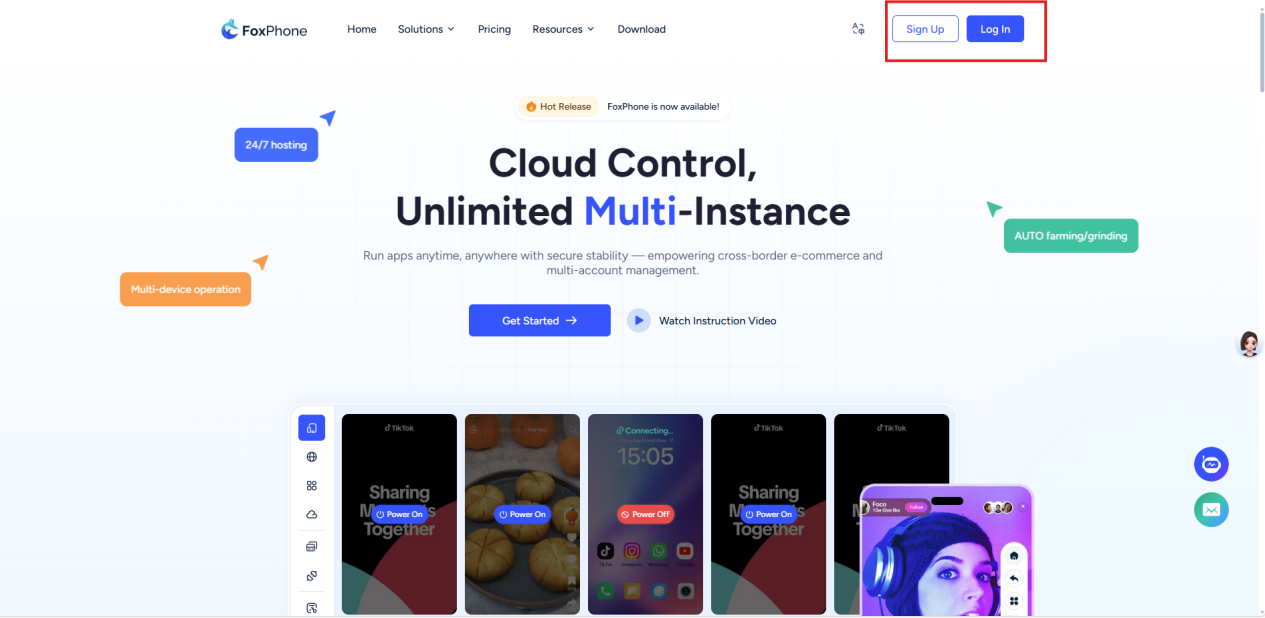
Supports quick login using email or third-party account Facebook.
After successful login, you will automatically jump to console
Step Two: Overview Console
The console is your core interface for managing all your devices, and here you'll find:
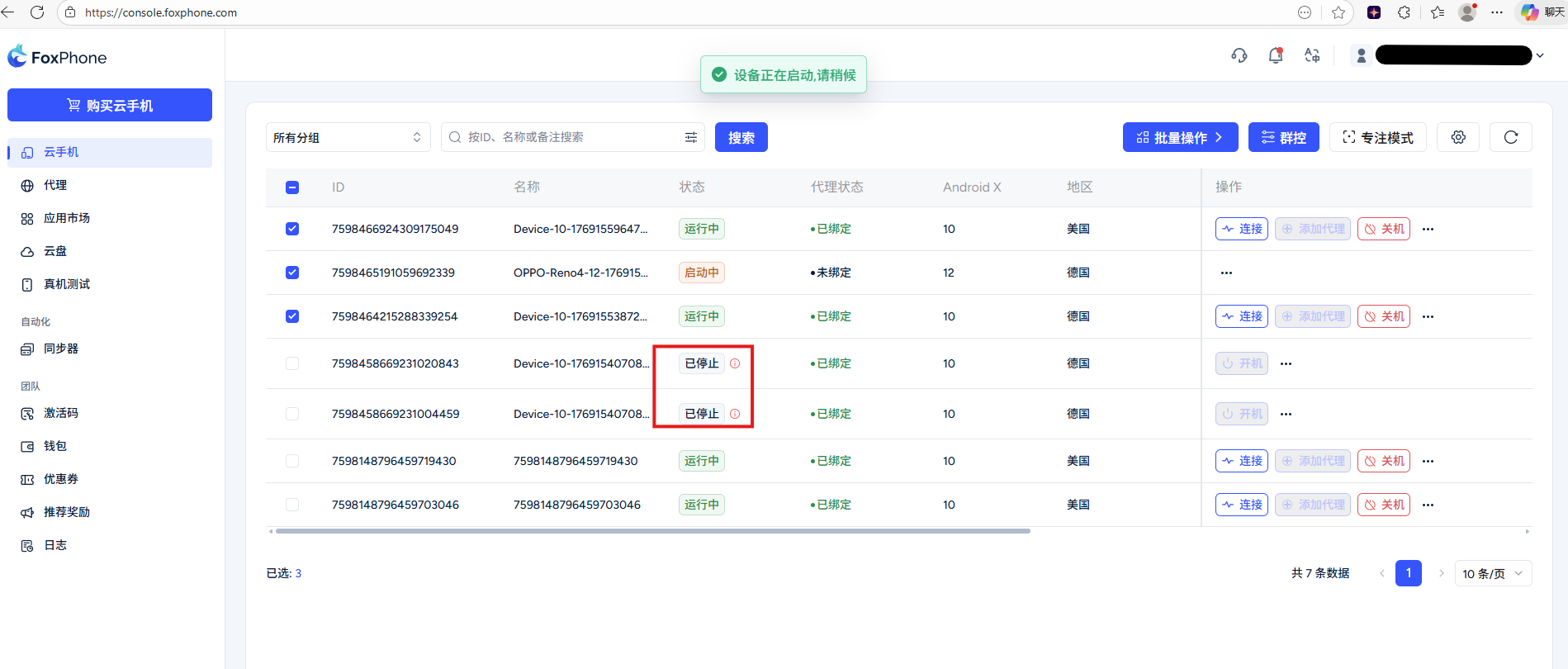
Equipment list: Display the ID, name and real-time status of all purchased devices Real-time status:
Device ID and name column
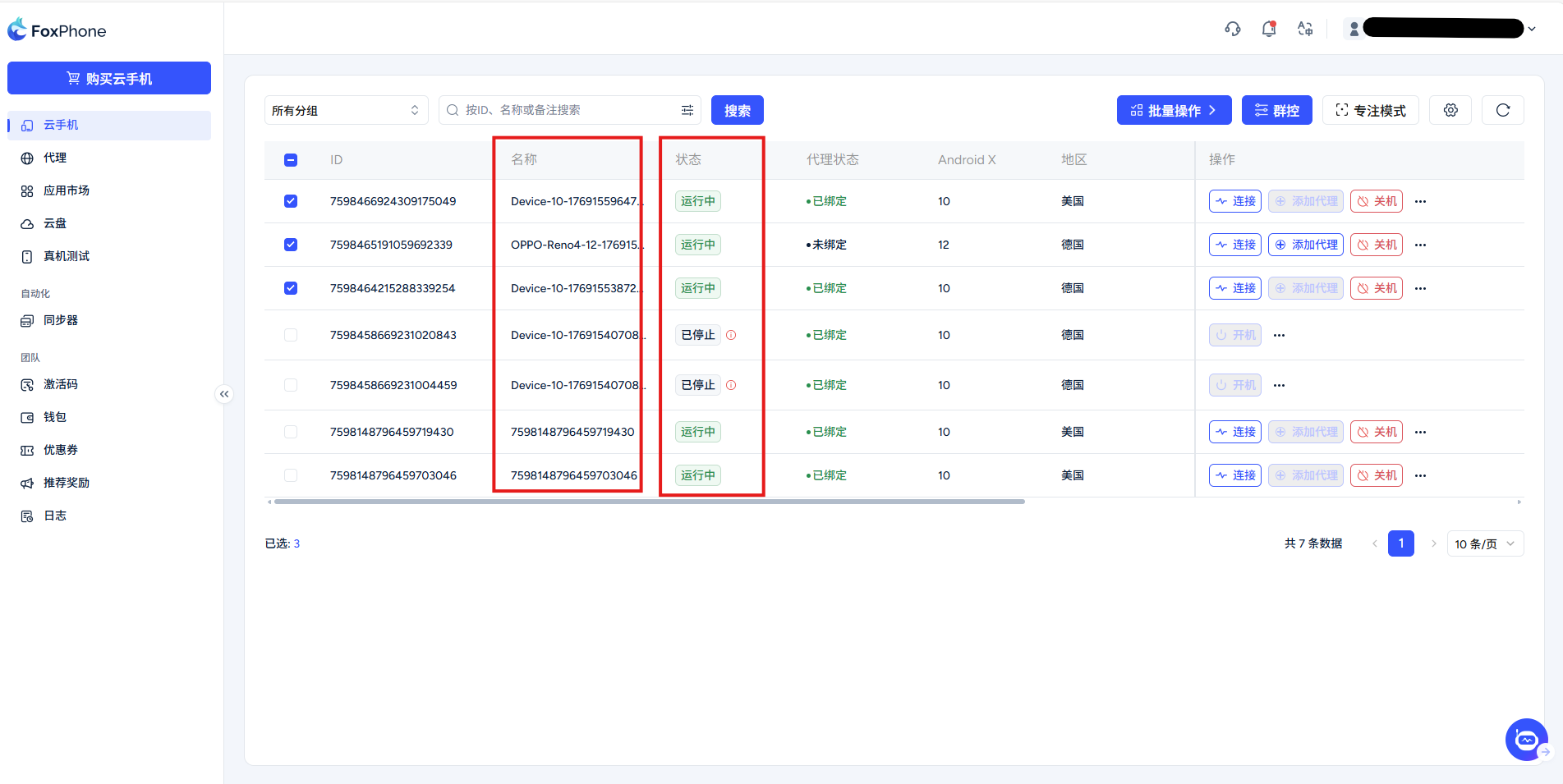
During use, you may see the following status:
Process status:
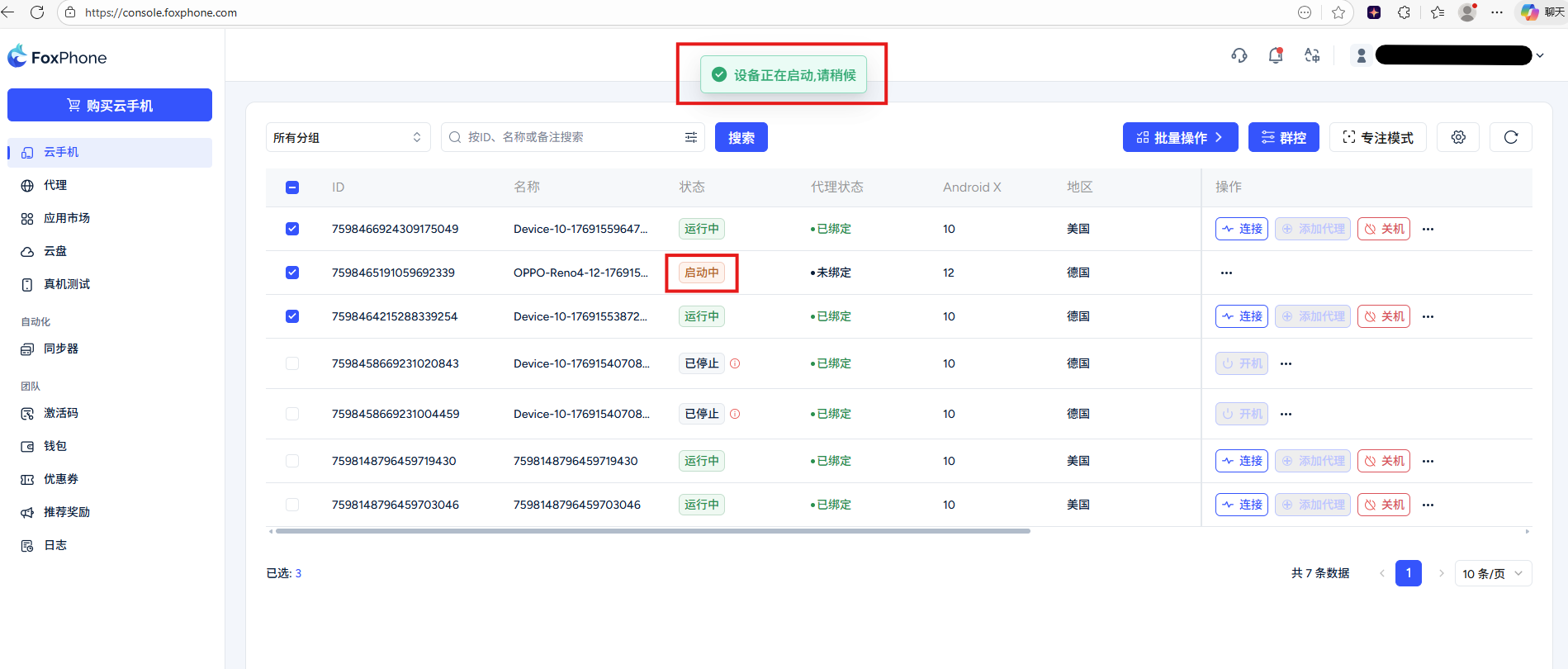
[Starting] Opening. It will be displayed after you purchase a new machine or after you completely end the process and start it up again.Startingstate
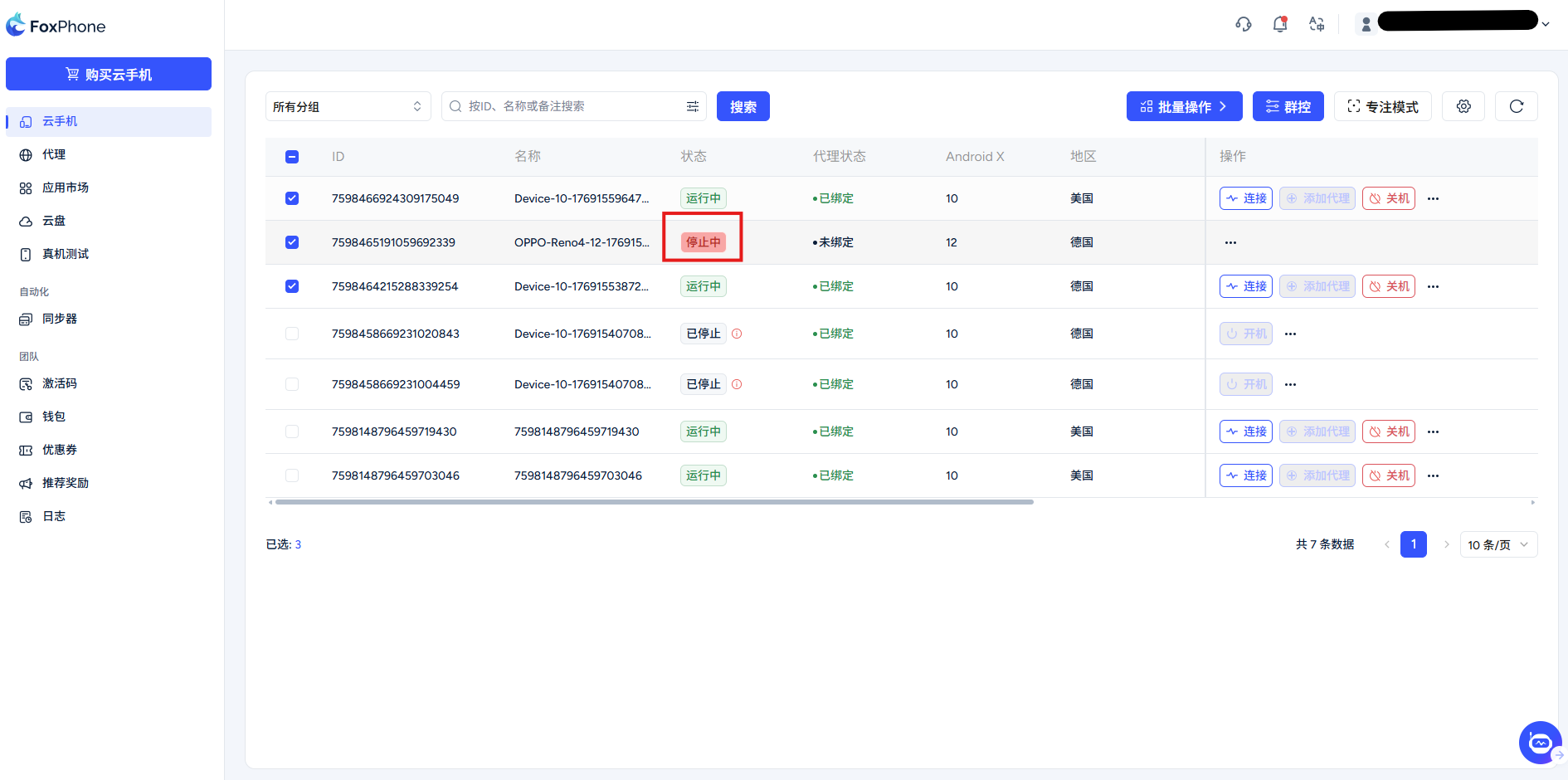
[Stopping] During shutdown, use [Shut down] Shown when the button turns off the phone completely
Resident state:
[Running] When the phone is running, click [connect] button to quickly open the cloud phone interface.
[Stopped] Powered off, the phone is in the off state at this time, you need to press [Power on] button to restart the boot operation.
Expired:freezeStatus (time billing is frozen for 24 hours, hourly billing is frozen for half an hour)
The cloud phone can be renewed but cannot be used while it is frozen. If the subscription is not renewed, the device will be automatically deleted upon expiration of the freeze period.
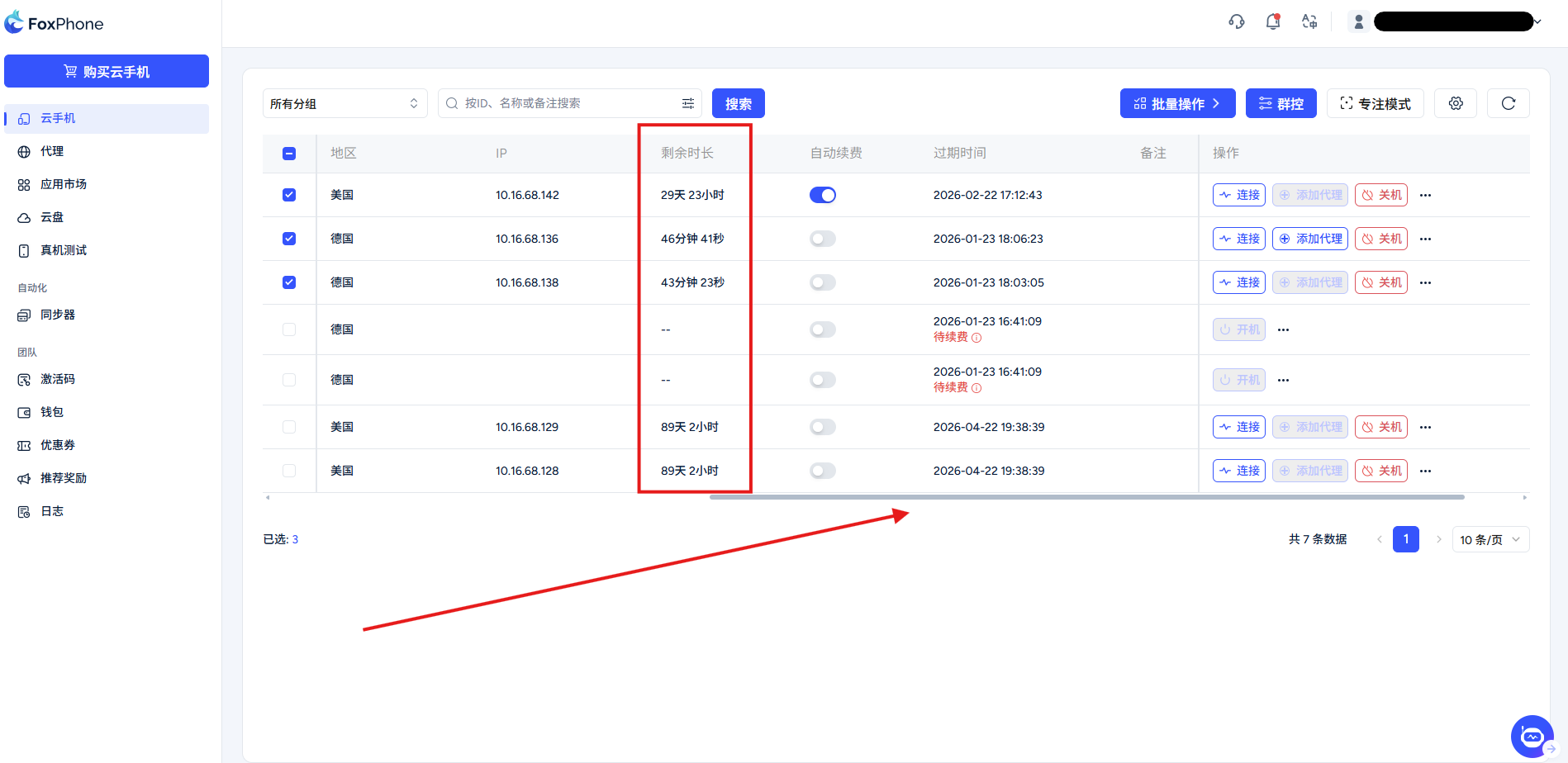
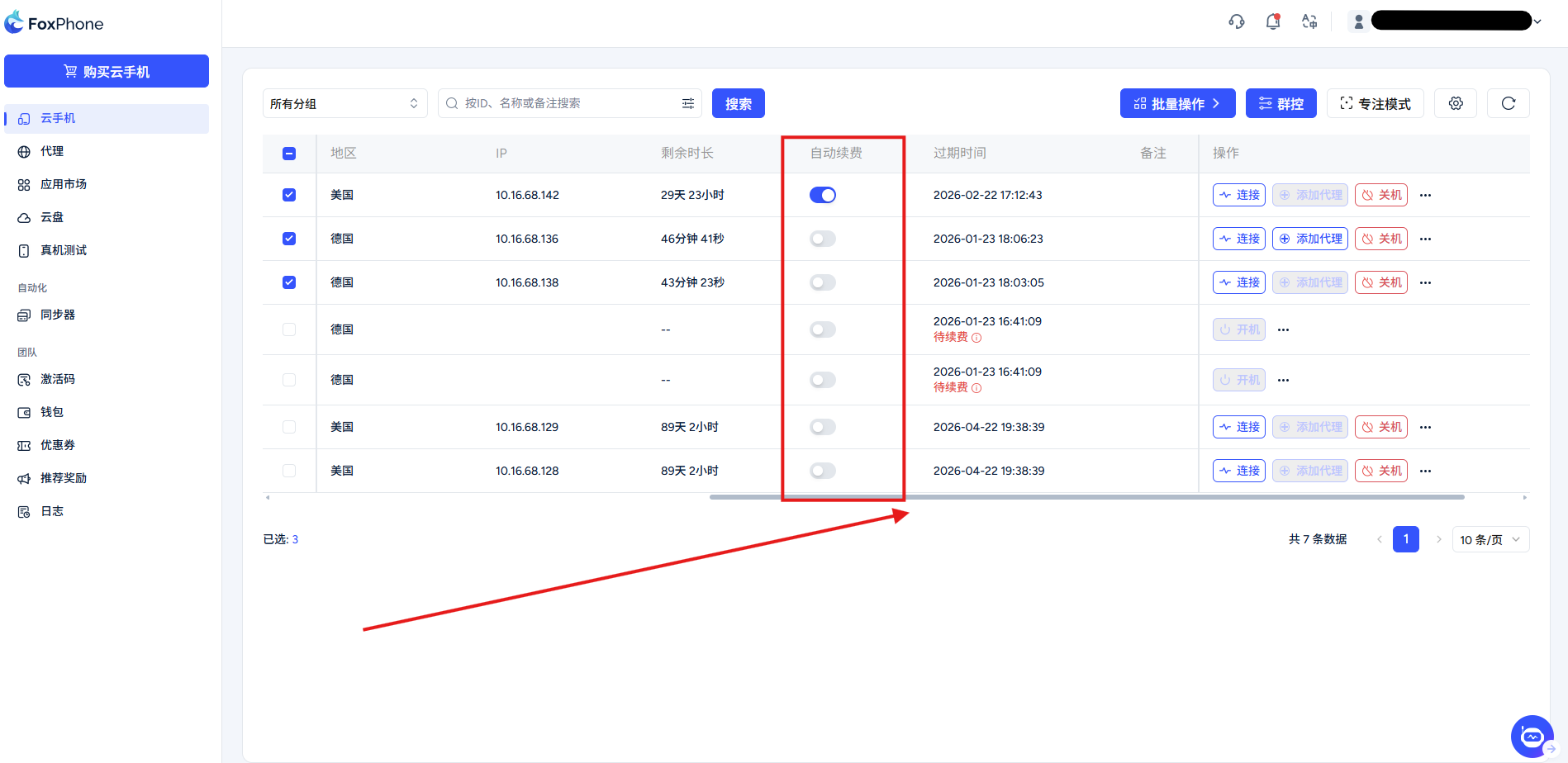
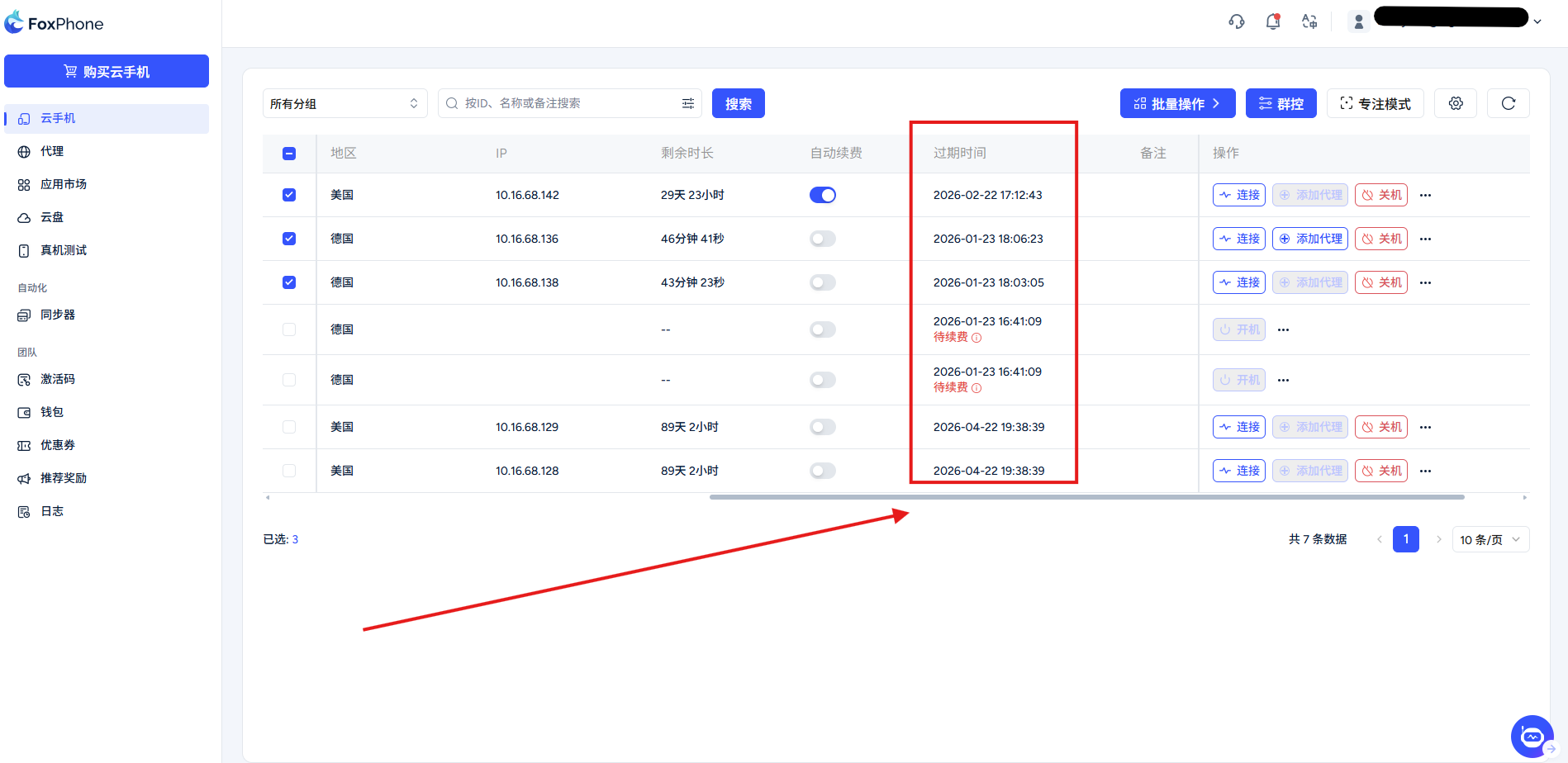
Slide the bottom gray bar to see:
Current remaining time
Auto-renewal button
Expiration time
Step 3: One-click connection
In the device list, find the purchased and available device and click [connect] button, a new window will pop up in the browser to display the cloud phone screen. You can now use the mouse/touchpad just like operating a real phone.
Action button guide
[Power on/off]: Press this button when you need to open or end all processes or completely close the cloud phone, and the status bar will display [Starting up / shutting down],start/stopThe process end status bar will change to [Running/Shut down]
[Add proxy]: Configure a proxy for your cloud phone, which needs to be used with proxy. For detailed tutorial on configuring the proxy, see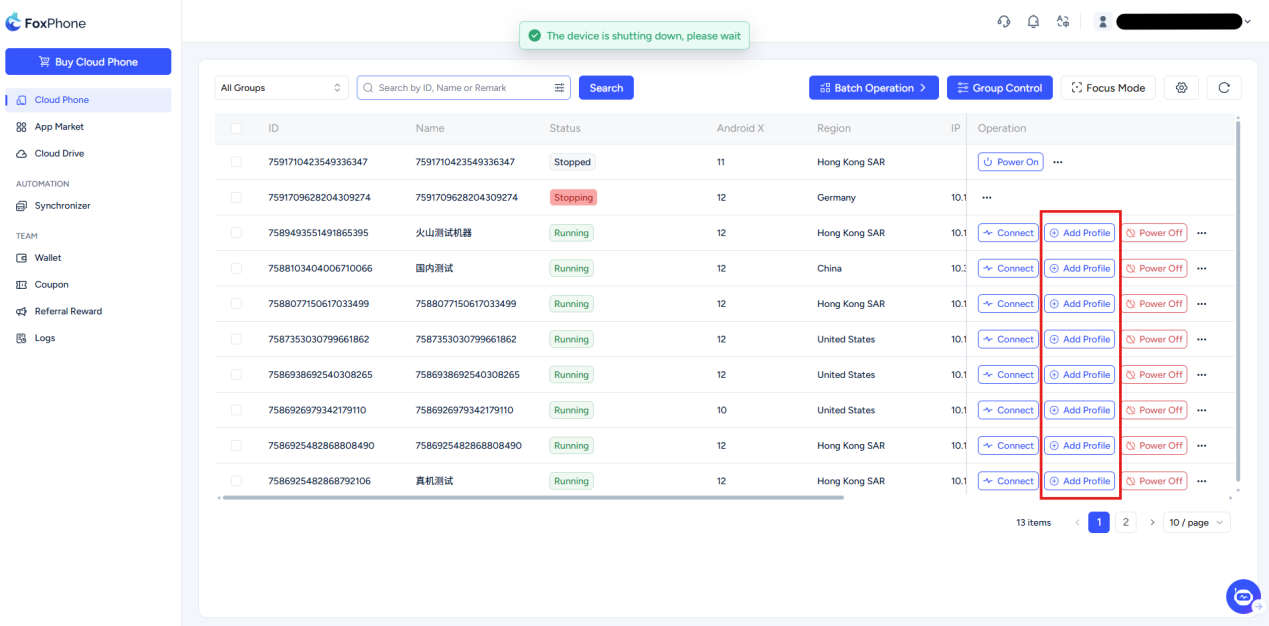
Cloud mobile interface
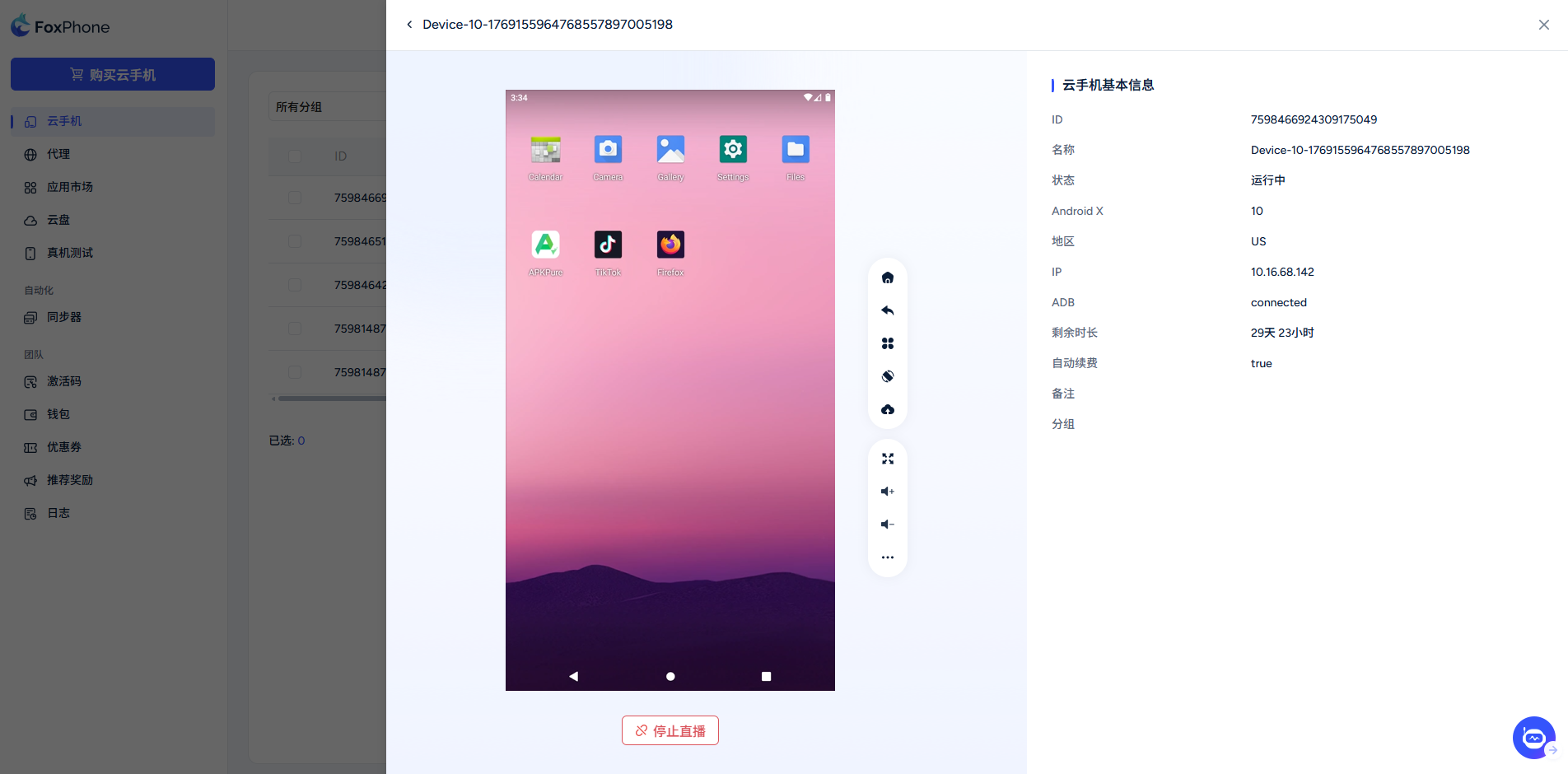
[Disconnect]: Disconnect the real-time image transmission between your local device and the cloud server. Stopping streaming just closes the "window" for your observation and control, inside the cloud phone Apps (such as idle games and automatic brushing scripts) usually continue to run in the cloud background and will incur time charges.
Note: The duration fee is generated after the cloud phone purchase is completed and cannot be suspended.


© 2026 Foxphone LLC. All rights reserved.


 Cookie Notice