


Cloud Phone Proxy proxy configuration tutorial
 2026-01-08T10:50:38+08:00
Cloud Phone Proxy proxy configuration tutorial
To enable your cloud phone to access a specific network or change the IP capabilities, please refer to the following steps to configure.
Obtain a third-party proxy (take 911proxy as an example)
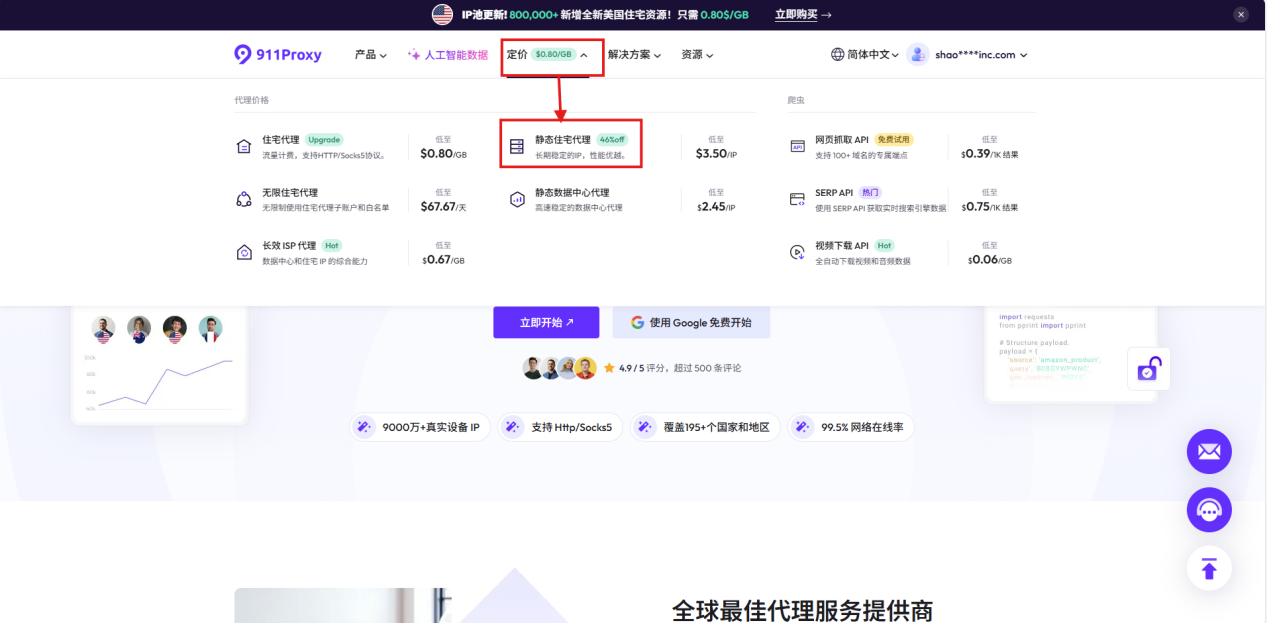
1. Log in to the official homepage of 911proxy.com and click Pricing > Static Residential Proxy
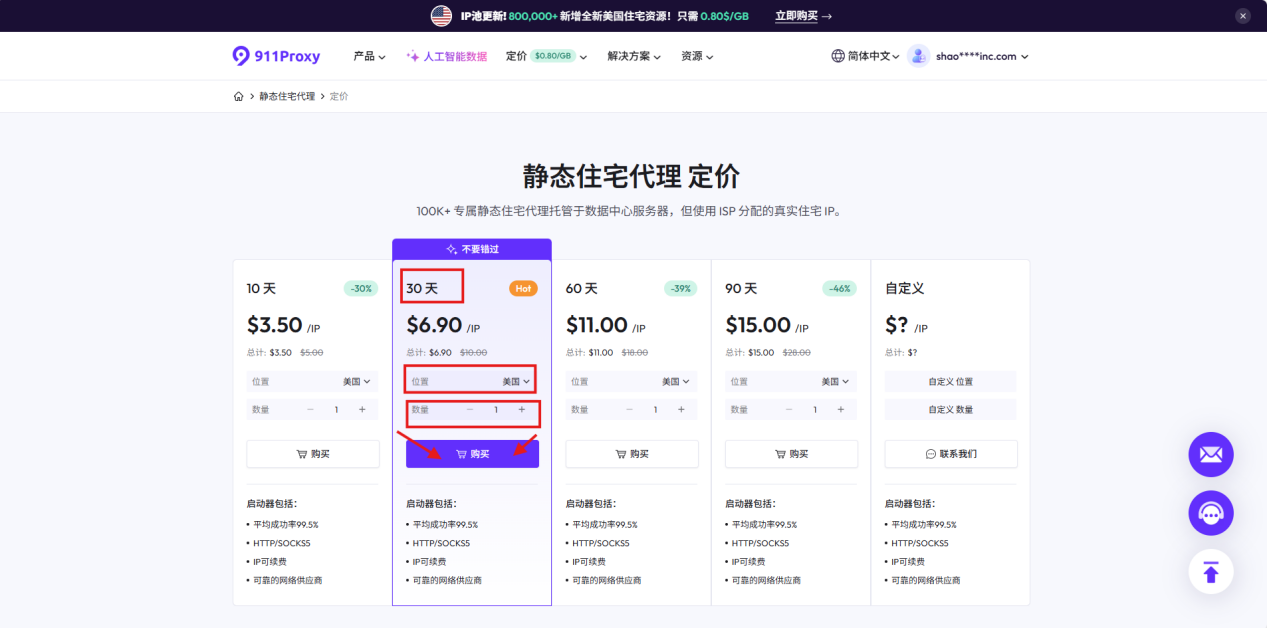
2. Select purchase information such as the number of days, IP address, quantity, etc. according to your needs, and click Purchase after completion.
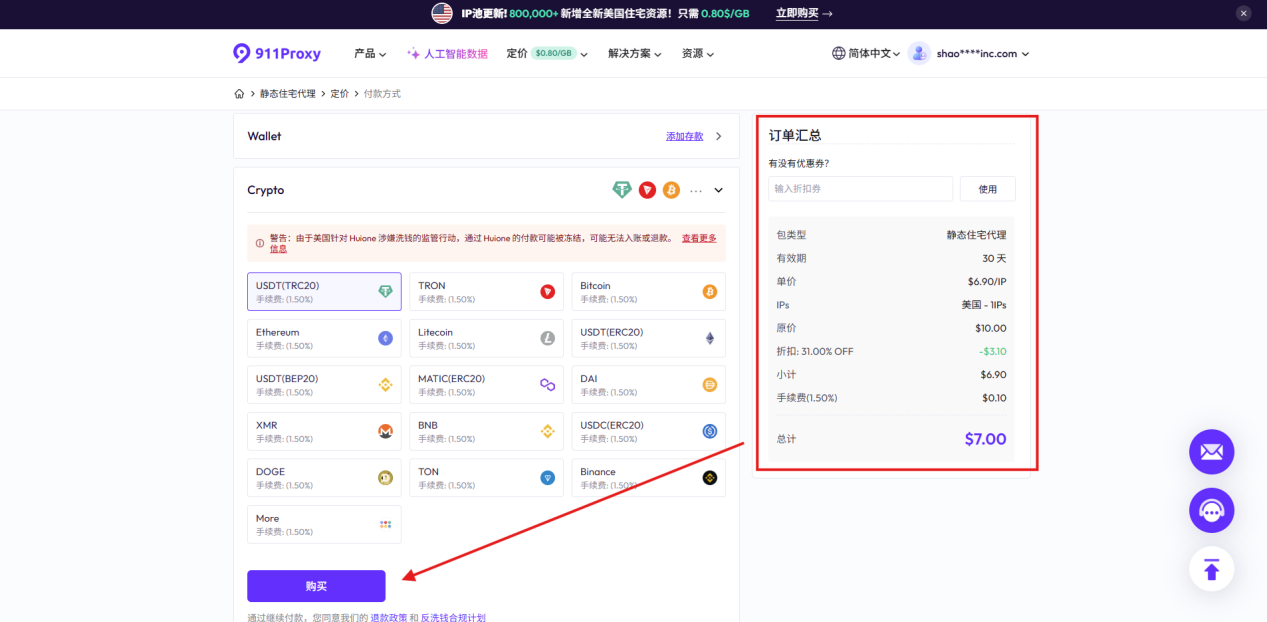
Select the payment method on the left, verify your order, and click Purchase to pay.
Next, configure the proxy IP for your cloud phone
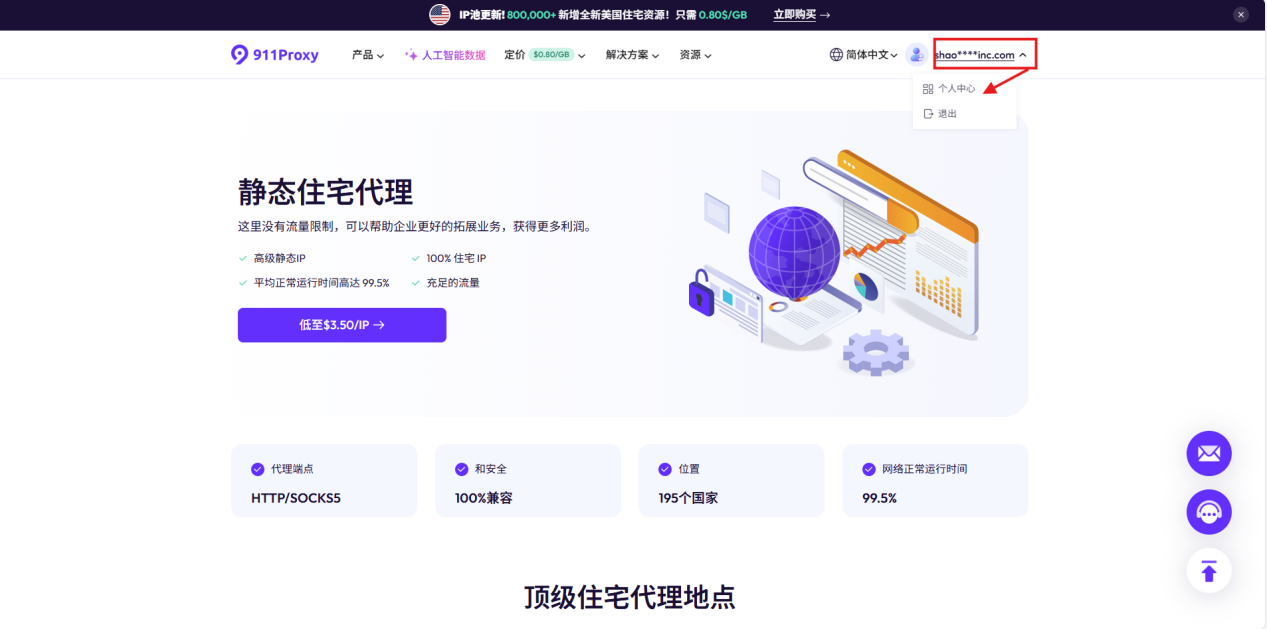
1. Hover the mouse over the personal account and click to enter the personal center
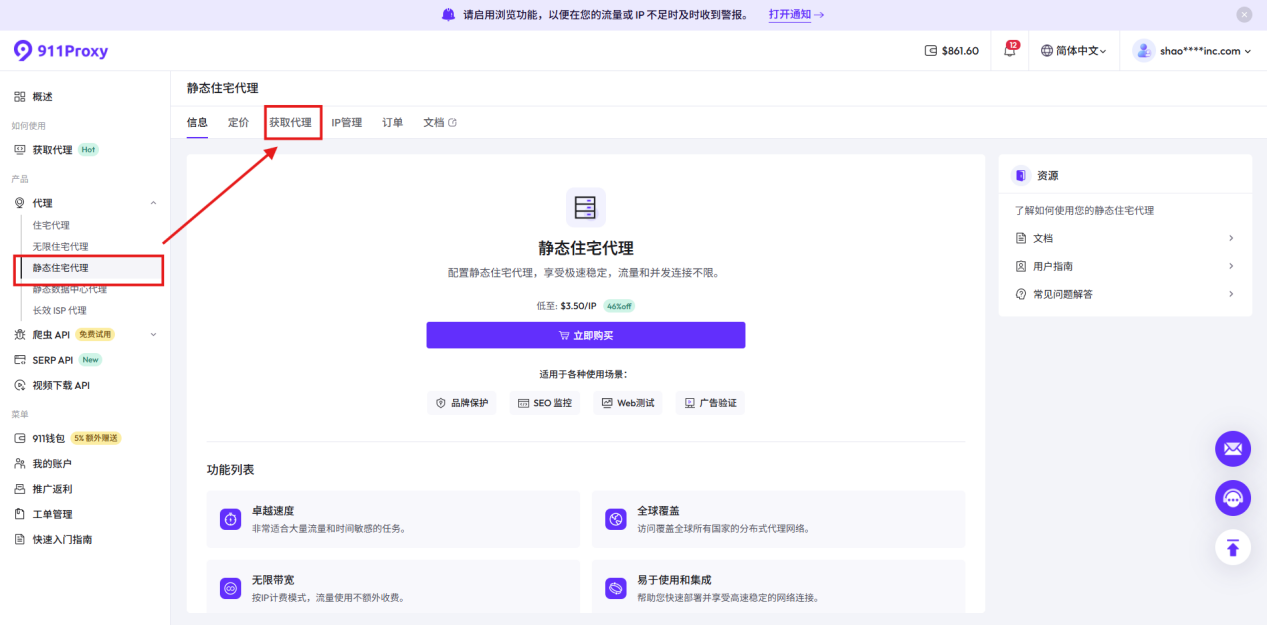
Select "Static Residential Proxy" > "Get Proxy" in the sidebar
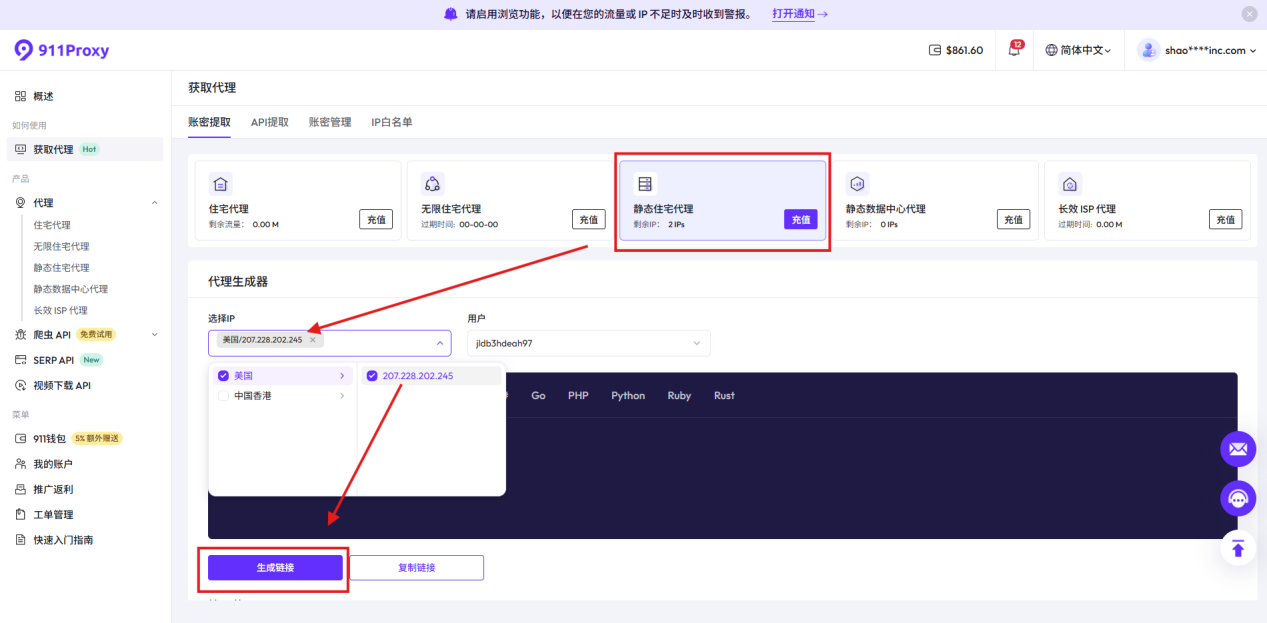
3. After jumping to the interface, select "Static Residential Proxy", then select the IP address, and finally click Generate Link
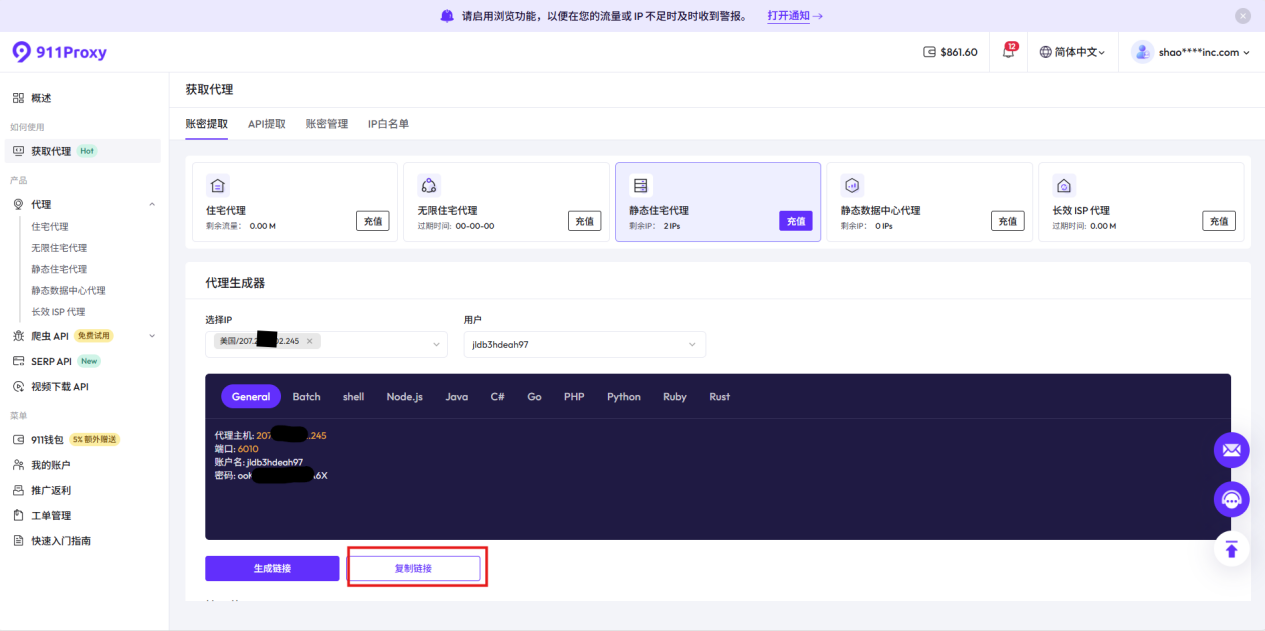
The system automatically generates: IP address, port and account and password information for you. You can click the copy link to copy with one click to facilitate subsequent operations.
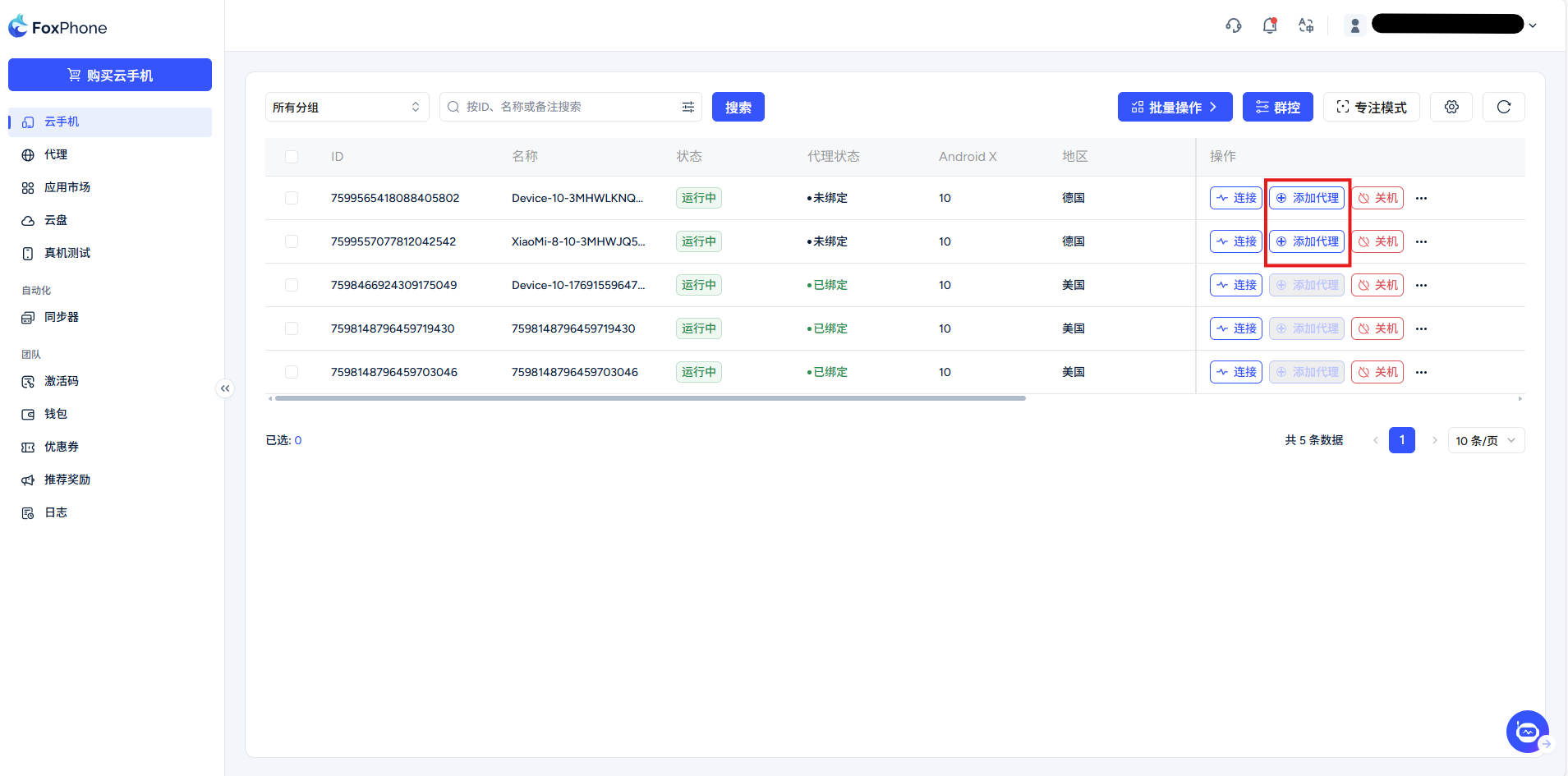
Open the cloud phone, in the console interface, click the [add profile] button to enter the configuration interface
Select "Socks5" as the proxy type
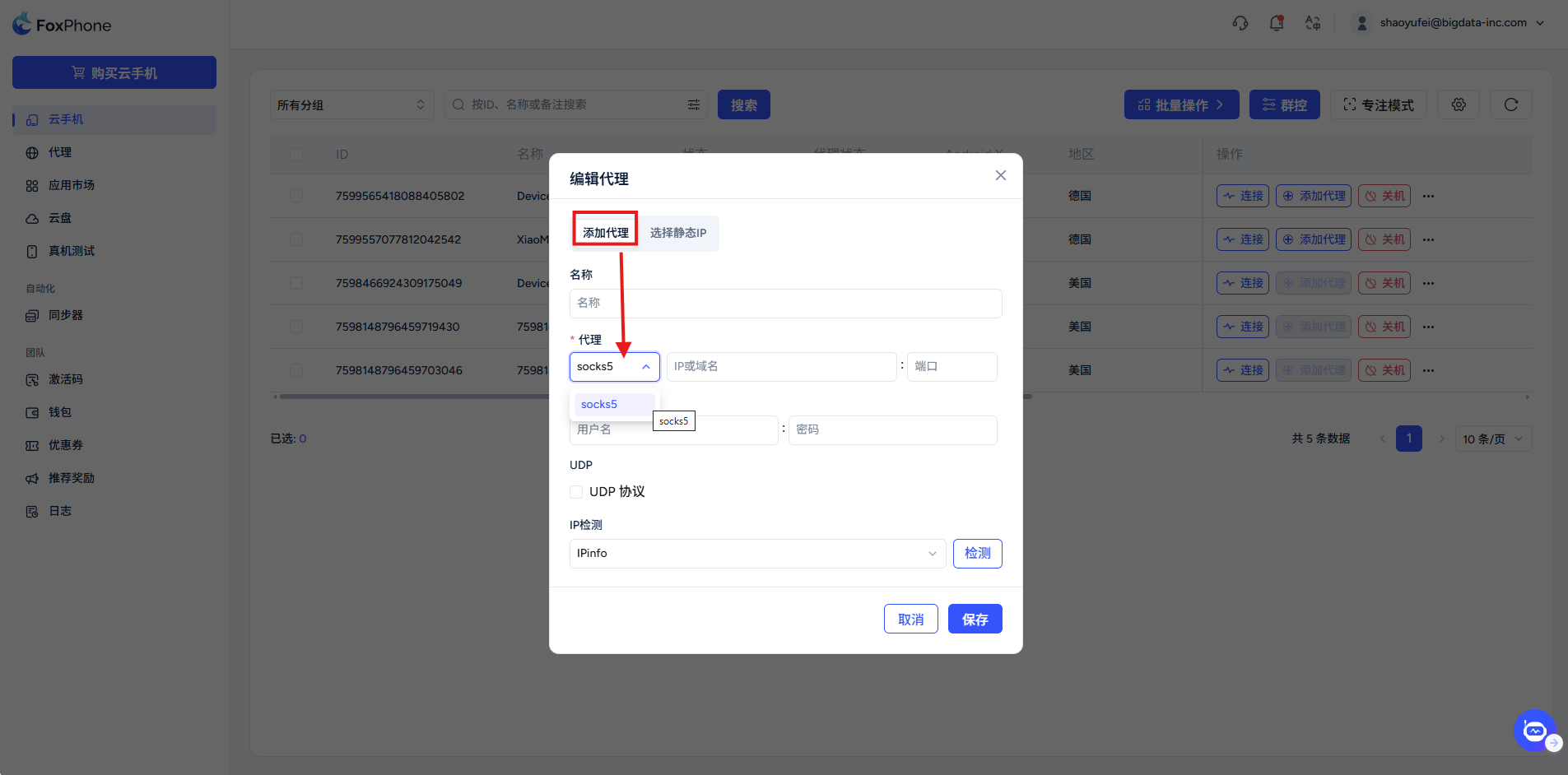
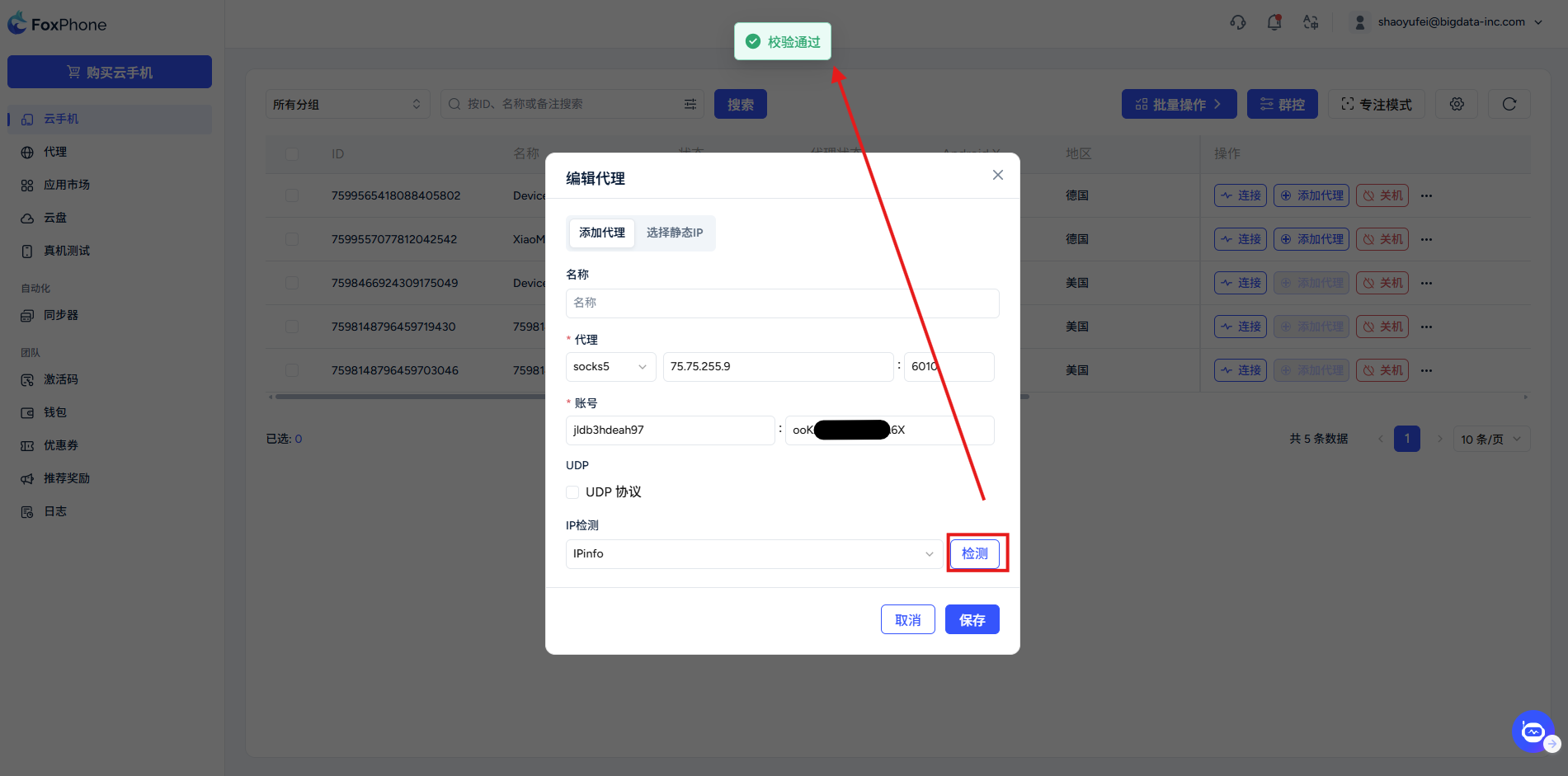
Copy and paste the IP address, port, user name, and password information configured in the system in sequence, and click Check. If the words "Verification Passed" appear at the top of the screen, it is valid.
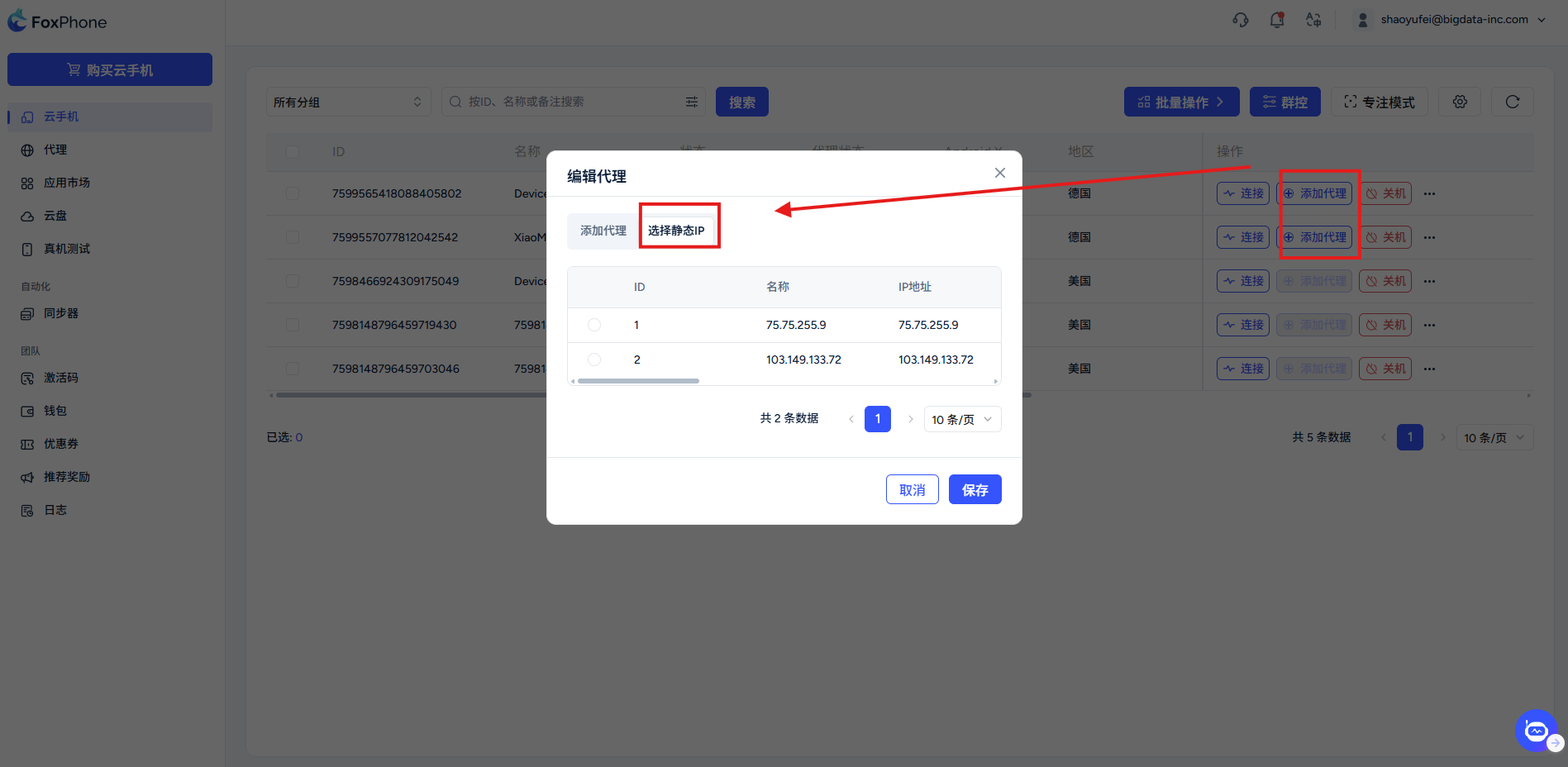
The saved IP can be seen in the "Select Static IP" column. Check the circle to configure the proxy IP with one click
Notes (must read)
region matching: Please make sure the proxy server's location matches your business destination for optimal internet speeds.
Network detection: After the configuration is completed, it is recommended to open the built-in browser of the cloud phone to access ip138.com or whoer.net to confirm whether the displayed IP has been successfully switched.
Delay description: Since the cloud phone itself is a remote screen, there may be a slight delay after overlaying the proxy. It is recommended to give priority to exclusive nodes to ensure smoothness.


© 2026 Foxphone LLC. All rights reserved.


 Cookie Notice