


Run Binance Trading Bots 24/7 with FoxPhone: What Works and What Doesn't in 2025
 2026-03-02 10:01:30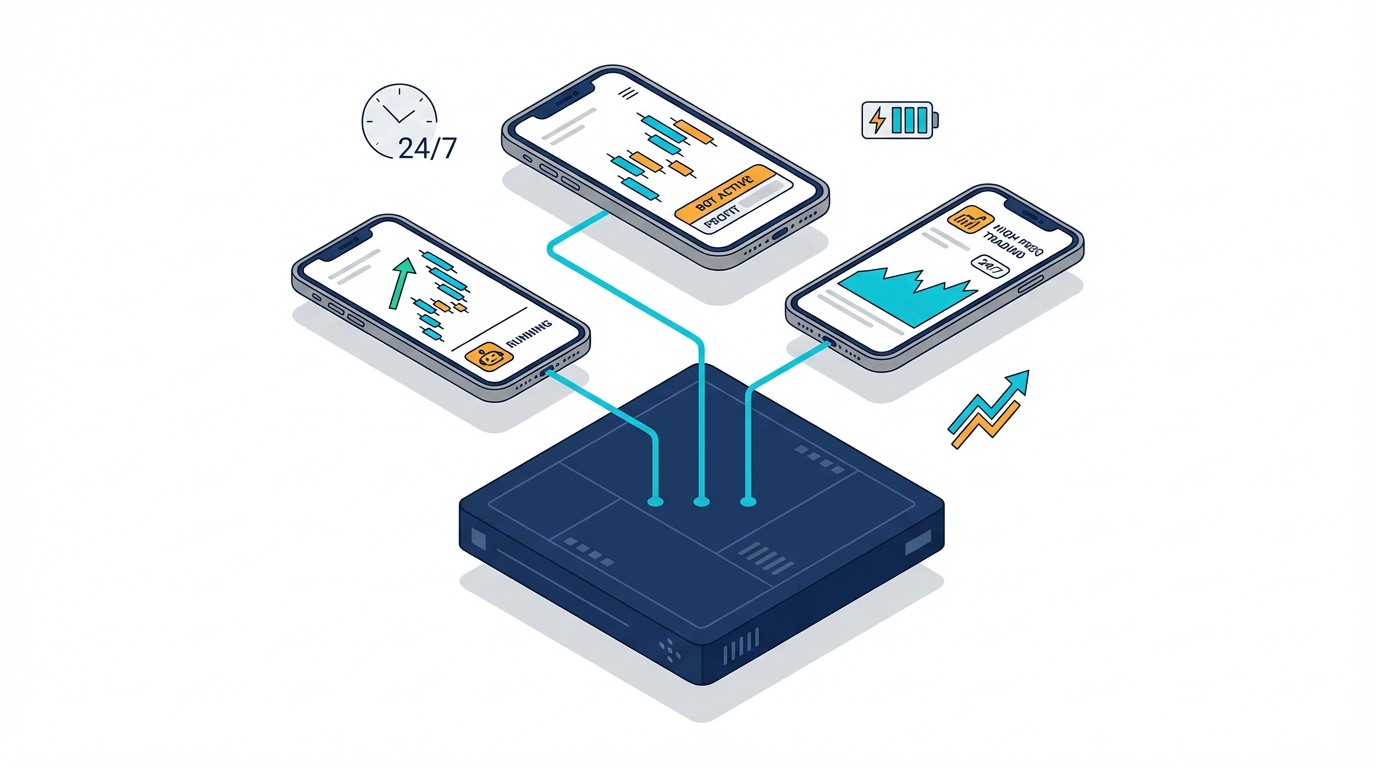
Run Binance Trading Bots 24/7 with FoxPhone: What Works and What Doesn't in 2025
You set up your Binance trading bot at 10 PM, carefully configuring your DCA strategy and stop-loss limits. You go to sleep confident that your bot will catch the overnight volatility. You wake up at 6 AM to find your phone died at 2 AM, and you missed a 15% pump. Your bot stopped executing trades the moment your screen went dark.
This isn't a rare scenario. Binance's mobile app requires constant connectivity to execute automated trades through third-party bots or even Binance's own Grid Trading and DCA Bot features. Your phone needs to stay awake, connected, and charged—for hours or even days. Most traders resort to leaving old phones plugged in 24/7, which creates a fire hazard and kills the battery within months.
FoxPhone offers a different approach: cloud-based Android phones that run continuously on remote servers. Your trading bots execute around the clock without draining your personal device, and you can monitor multiple Binance accounts with separate device IDs. But does it actually work for crypto trading, or will latency kill your execution speed?
Why Binance Mobile Trading Creates This Problem
Binance's mobile app offers several automated trading features that desktop users don't always have easy access to:
Grid Trading Bots: These execute buy and sell orders within a price range. Once activated, they need continuous app connectivity to monitor price movements and place orders. If your phone sleeps, the bot pauses.
DCA Bots (Dollar-Cost Averaging): These purchase crypto at fixed intervals. Missing even one execution window throws off your entire averaging strategy.
Third-Party Bot Integration: Apps like 3Commas, Cryptohopper, and Cornix connect to Binance through API keys and require the mobile app to stay active for push notifications and quick manual interventions.
Futures Trading Alerts: Leverage trading requires split-second liquidation monitoring. Your phone dies, your position gets liquidated, and you lose your collateral.
Here's the real kicker: Binance's app doesn't run true background processes on most Android devices. Power-saving features in Android 10+ aggressively kill background apps. Even with "optimization disabled," your phone will eventually put Binance to sleep after 30-60 minutes of screen-off time.
Why Regular Phones Fail at 24/7 Trading
Most crypto traders try one of these approaches:
Leaving Your Daily Phone Plugged In: Your battery swells within 3-6 months from constant charging. Lithium-ion batteries aren't designed for permanent charge cycles at 100%. Replacement costs $80-150, and you risk thermal damage to other components.
Using an Old Spare Phone: You still pay electricity costs (roughly $2-3/month for 24/7 charging), the battery degrades, and you're using a physical device that can overheat or lose internet connection. Plus, you can only run one Binance account per device without triggering security flags.
Running Emulators on Your PC: Binance detects most Android emulators (BlueStacks, NoxPlayer) through GPU signatures and virtualization markers. Many users report delayed withdrawals or temporary account restrictions when logging in from emulated devices. Emulators also consume 200-400W of power compared to a phone's 5-10W.
Desktop Trading Platforms: Binance's desktop app lacks some mobile-exclusive bot features, and your computer still needs to run 24/7. A desktop PC uses 100-300W continuously—that's $15-30/month in electricity in most US states.
None of these solutions scale if you're managing multiple accounts for different strategies (one for DCA, one for Grid Trading, one for Futures).
This Is Where FoxPhone Comes In
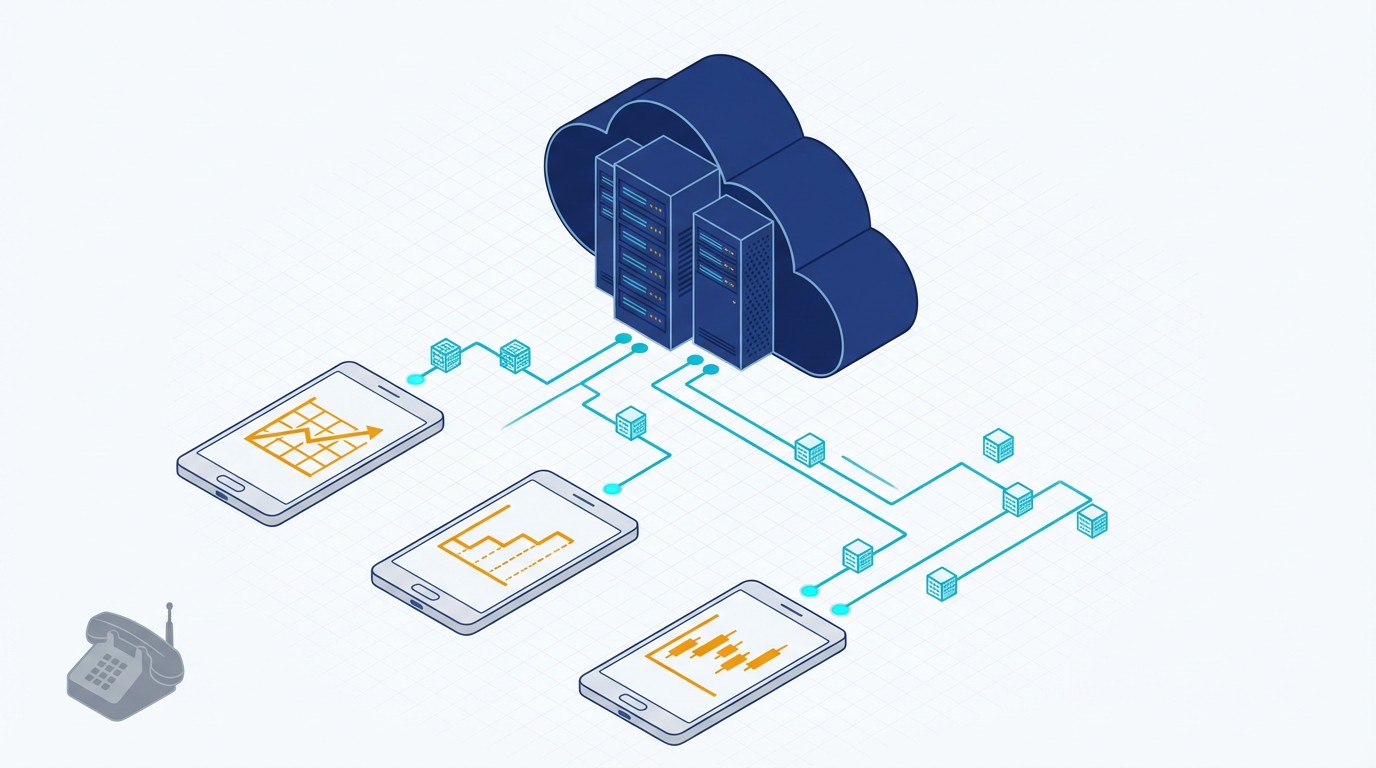
FoxPhone runs full Android instances on remote ARM-based servers. You're not using an emulator—you're accessing a real Android environment that operates continuously in the cloud.
For Binance trading, this means:
- True 24/7 Operation: Your trading bots run continuously regardless of whether your personal phone is on, charged, or even connected to the internet. FoxPhone instances don't sleep, don't enter power-saving modes, and maintain persistent Binance app connectivity.
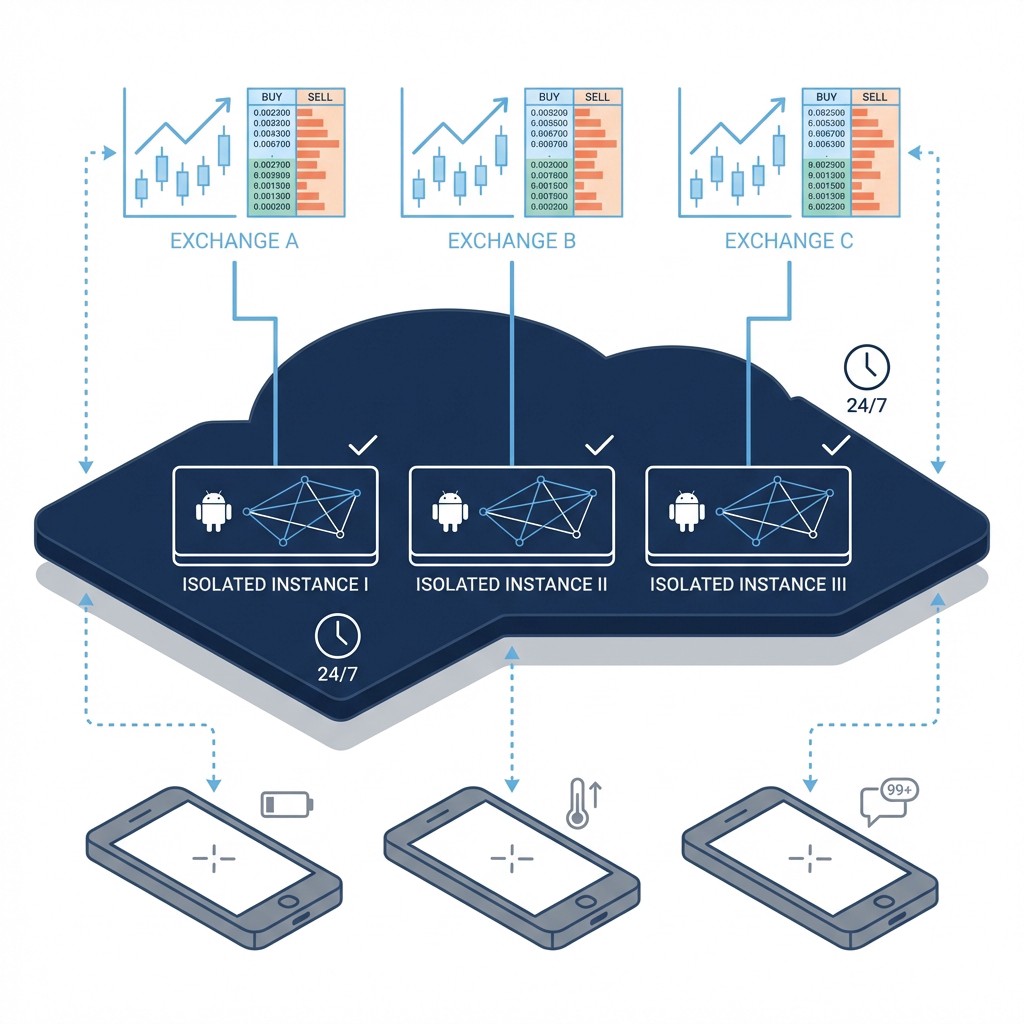
- Multiple Separate Accounts: FoxPhone gives each cloud instance a unique device ID, IMEI, and fingerprint. You can run different Binance accounts on separate FoxPhone instances without cross-contamination. One instance for spot trading DCA, another for Grid bots, a third for Futures monitoring.
- Zero Battery Wear on Your Device: Your personal phone only accesses the FoxPhone dashboard. The actual Binance app runs remotely. Your phone's battery lasts years longer, and you never worry about thermal damage from overnight charging.
- Persistent API Connections: Third-party bot apps like 3Commas maintain constant connections to Binance APIs through FoxPhone. No dropped sessions, no re-authentication loops, no missed trades because your phone went to sleep.
- Remote Access from Anywhere: You're on vacation with spotty WiFi? Your FoxPhone instance keeps running your bots. You can check in via 4G for 30 seconds, see your profit/loss, and disconnect—the bots keep executing.
Setting Up Binance Trading Bots on FoxPhone
Here's how to configure FoxPhone for automated Binance trading:
- Step 1: Create Your FoxPhone Instance
Log into the FoxPhone dashboard and create a new Android instance. Choose a version that matches your current phone (Android 11 or 12 recommended for Binance). FoxPhone will assign unique device identifiers automatically.
- Step 2: Install Binance on FoxPhone
Access your FoxPhone instance through the web interface. Open the Google Play Store and download Binance normally. Log in with your trading account credentials. Enable 2FA through your authenticator app on your personal phone.
- Step 3: Configure Bot Settings in Binance
Navigate to "Trade" > "Trading Bots" in the Binance app on FoxPhone. Set up your Grid Trading or DCA bot parameters:
- Grid Trading: Define your price range (e.g., BTC $40,000-$50,000), number of grids (10-20 typical), and investment amount
- DCA Bot: Set your purchase interval (every 6 hours, daily, weekly) and amount per purchase
- Step 4: Disable FoxPhone Sleep Settings
In the FoxPhone instance settings (not Binance), ensure "Screen Sleep" is set to "Never." This keeps the Android environment active. Set "Network Persistence" to "Always On" so your FoxPhone maintains constant internet connectivity.
- Step 5: Set Up Third-Party Bot Apps (Optional)
If using 3Commas or Cryptohopper, install these apps on your FoxPhone instance. Connect them to Binance using API keys (generate these in Binance's API Management section). Restrict API permissions to "Enable Reading" and "Enable Spot & Margin Trading"—never enable withdrawal permissions for security.
- Step 6: Test and Monitor
Execute a small test trade to confirm your bot works. On your personal phone, you can access the FoxPhone dashboard anytime to view your Binance screen in real-time, check bot performance, or manually intervene if needed.
Real-World Cost Calculation: FoxPhone vs Physical Phones
Let's compare running three Binance bot strategies simultaneously for one year:
Three Physical Phones Approach:
- 3x used phones for dedicated trading: $150-300 each = $450-900
- Electricity: 3 phones × 5W × 24 hours × 365 days = 131 kWh/year × $0.13/kWh = $17/year
- Battery replacements within 12 months: 3 × $100 = $300
- Total First-Year Cost: $767-1,217
FoxPhone Approach:
- 3 FoxPhone instances: Pricing varies, but typically $15-30/instance/month
- Assuming $20/instance/month: $20 × 3 × 12 = $720/year
- No battery replacements: $0
- No electricity costs at home: $0
- No hardware depreciation: $0
- Total First-Year Cost: $720
Savings with FoxPhone: $47-497 in year one. By year two, you save another $300+ on battery replacements alone.
Beyond money, consider time saved: you don't manage three physical devices, don't worry about overheating, and don't troubleshoot charging issues at 3 AM when Bitcoin pumps.
What FoxPhone Can't Fix
Let's be realistic about limitations:
Latency for Scalping: If you're doing high-frequency scalping (10+ trades per minute), FoxPhone introduces 50-150ms of latency compared to a local device. For DCA bots and Grid Trading that execute every few minutes or hours, this is irrelevant. For Futures scalping, you'll notice the delay.
KYC and Verification: When Binance requires facial verification or document uploads during security checks, you'll need to perform these actions through the FoxPhone interface. The camera quality is passable but not as crisp as your phone's native camera. Most users complete verification successfully, but plan for potential retries.
Internet Dependency: FoxPhone runs in data centers with 99.5%+ uptime, far better than your home WiFi. But if the data center itself has an outage (rare), your bots stop. Binance's own servers also experience occasional downtime—FoxPhone can't trade when Binance itself is down.
Push Notification Delays: Price alerts and liquidation warnings arrive 5-30 seconds slower through FoxPhone compared to notifications on your local device. If you're running leveraged Futures, set wider stop-losses to account for reaction time.
Not a Trading Strategy: FoxPhone keeps your bots running 24/7, but it won't make your bots profitable. Bad Grid Trading parameters lose money just as reliably on FoxPhone as anywhere else. The platform provides uptime, not alpha.
Multiple Account Strategy with FoxPhone
Here's where FoxPhone truly shines for serious traders: portfolio segmentation.
Run three separate FoxPhone instances for risk management:
- Instance 1 – Conservative DCA Bot: Bitcoin and Ethereum dollar-cost averaging, purchasing $50 every 12 hours regardless of price. This account never touches leverage and focuses on long-term accumulation.
- Instance 2 – Grid Trading on Altcoins: Set up Grid bots on volatile pairs like SOL/USDT or MATIC/USDT. These bots profit from sideways price action, capturing 2-5% gains repeatedly within defined ranges.
- Instance 3 – Futures Monitoring: Track leveraged positions with tight stop-losses. This FoxPhone instance runs alert apps and TradingView mobile for quick chart analysis.
Each instance maintains a completely separate Binance account with distinct device IDs from FoxPhone. Binance's security systems see three different Android devices, not one device juggling three accounts. This prevents account linking and reduces the risk of one flagged account affecting others.
Advanced: Combining FoxPhone with Desktop Trading
Many professional traders use a hybrid approach:
- FoxPhone instances: Run automated DCA and Grid bots that don't require constant monitoring
- Desktop Binance: Execute manual spot trades and analyze charts on TradingView
- Personal phone: Receive urgent liquidation alerts only
FoxPhone handles the repetitive 24/7 tasks (dollar-cost averaging, grid rebalancing), while you make strategic decisions on desktop during active trading hours. Your personal phone stays free for normal use without Binance draining battery in the background.
One trader reported running five DCA bots on five FoxPhone instances, each purchasing different altcoins on different schedules. His personal phone never touches Binance except to check his portfolio dashboard once a day. His phone battery lasts two full days now instead of dying by 6 PM.
FAQ
Is FoxPhone safe for Binance accounts?
FoxPhone provides genuine Android environments with separate device IDs, which appear to Binance as regular mobile devices. Thousands of users run exchange apps on cloud phones without issues. However, always enable 2FA, restrict API permissions, and never share your FoxPhone login credentials. Binance's security depends more on your authentication practices than the device type.
Can I run Binance and other exchange bots simultaneously on FoxPhone?
Yes. You can run Binance on one FoxPhone instance, Coinbase on another, and KuCoin on a third—all simultaneously. Each instance operates independently with separate device identifiers. Some traders run the same exchange on multiple FoxPhone instances with different sub-accounts for strategy diversification.
What happens if I lose internet on my personal phone?
Your FoxPhone instances continue running regardless of your personal device's connectivity. Your bots keep executing trades even if you're on an airplane or your phone is completely off. You only need internet when you want to access the FoxPhone dashboard to monitor or adjust settings.
Conclusion: Is FoxPhone Worth It for Crypto Trading?
If you're running automated Binance bots, FoxPhone eliminates the biggest pain point: keeping a physical device alive 24/7. You save money on battery replacements, reduce fire risk from constantly charging devices, and gain the ability to manage multiple accounts with proper separation.
FoxPhone works best for set-and-forget strategies like DCA bots and Grid Trading. It's less ideal for split-second scalping where every millisecond counts. For 90% of retail crypto traders running medium-frequency bots, the latency difference is unnoticeable while the uptime advantage is game-changing.
The ability to check your FoxPhone trading instance from any device—your phone during lunch break, your tablet on the couch, your laptop while traveling—adds flexibility that dedicated hardware can't match.
Try FoxPhone free with a single trading bot instance. Set up one DCA bot for Bitcoin, let it run for a week, and compare your experience to leaving a physical phone plugged in. Most traders find that the convenience alone justifies the cost, even before calculating battery savings and electricity reductions.
Your trading bots work around the clock. Shouldn't your phone setup do the same?

 How to Automate Temu Daily Rewards with FoxPhone: Complete 2025 Guide
How to Automate Temu Daily Rewards with FoxPhone: Complete 2025 Guide
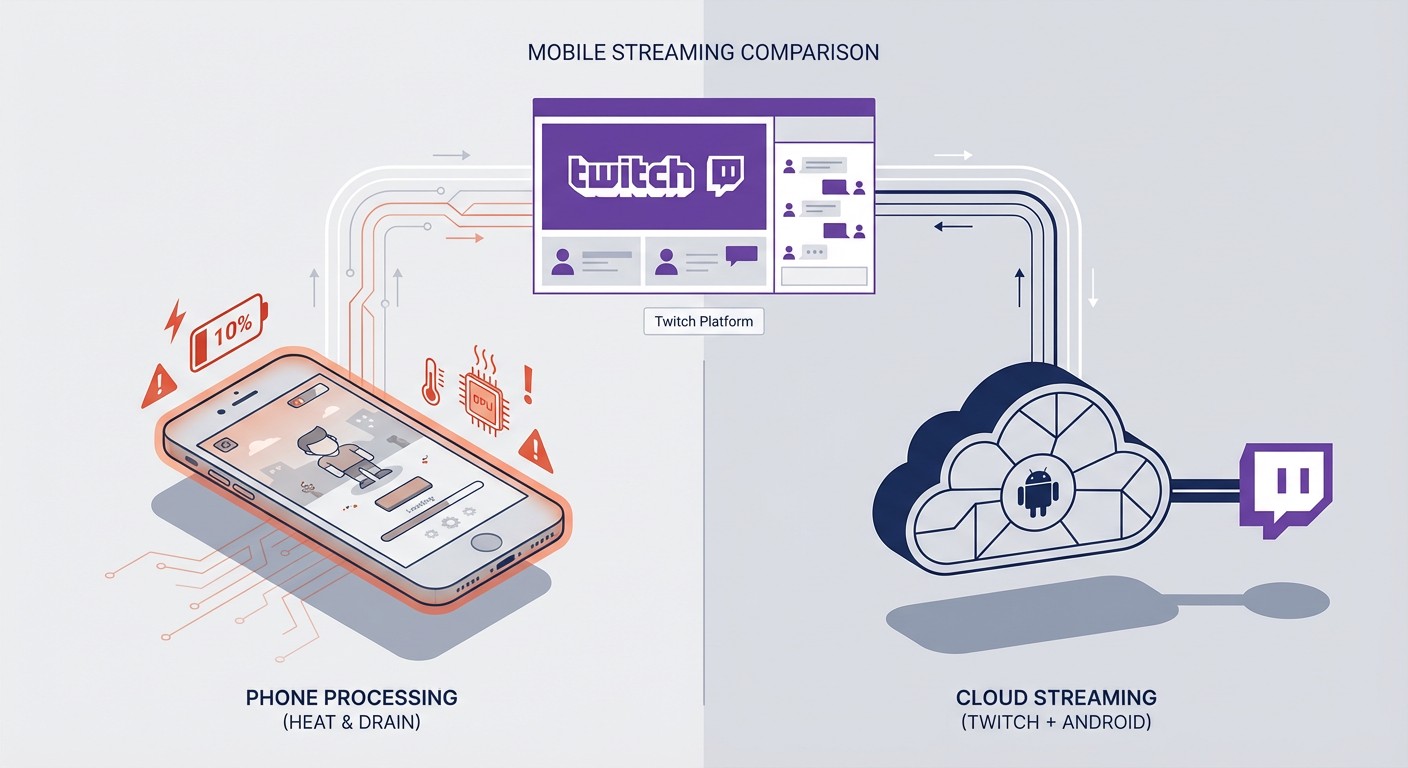 Run Twitch Mobile Game Streams 24/7 with FoxPhone: Setup Guide for Multi-Channel Streaming
Run Twitch Mobile Game Streams 24/7 with FoxPhone: Setup Guide for Multi-Channel Streaming
 How to Collect Google Opinion Rewards Surveys 24/7 with FoxPhone: 4 Methods That Actually Work
How to Collect Google Opinion Rewards Surveys 24/7 with FoxPhone: 4 Methods That Actually Work


© 2026 Foxphone LLC. All rights reserved.


 Cookie Notice