


How to Complete Free Fire Missions 24/7 with FoxPhone: 3 Methods That Actually Work
 2026-03-02 10:01:30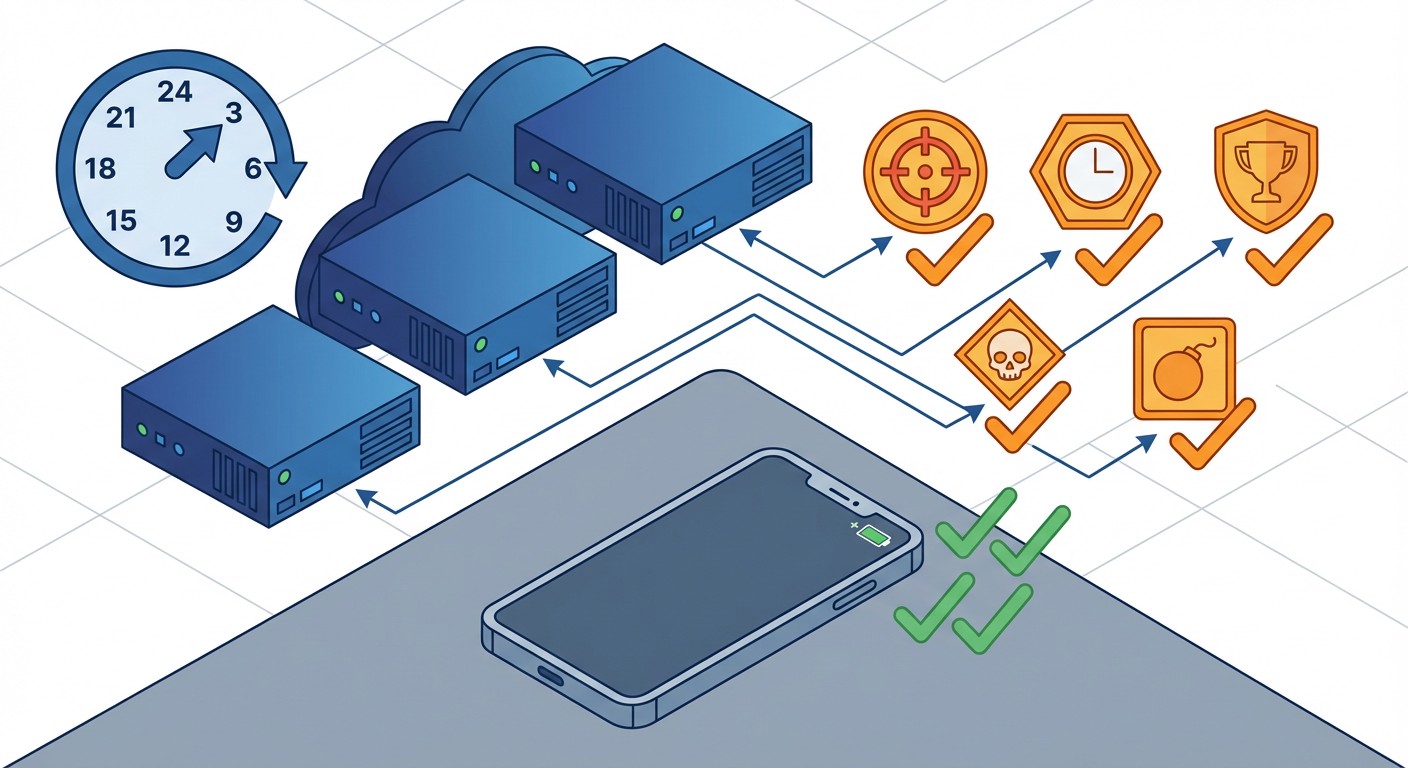
How to Complete Free Fire Missions 24/7 with FoxPhone: 3 Methods That Actually Work
You're staring at your phone at 11:58 PM, frantically trying to complete Free Fire's daily missions before reset. Your battery is at 12%, your phone is burning hot, and you've still got three missions left. Tomorrow morning, you'll wake up to find you missed out on 50 diamonds and another day toward that Elite Pass milestone.
This scenario plays out for millions of Free Fire players every day. Garena designed Free Fire with daily missions that refresh every 24 hours at midnight GMT+8, forcing players to log in consistently or lose progress. Miss three days of missions? That's 150 diamonds gone—nearly $2 worth of premium currency. With FoxPhone's cloud-based Android instances, you can automate mission completion without leaving your personal phone running overnight.
The real problem isn't just inconvenience. Running Free Fire continuously destroys phone batteries, generates excessive heat, and racks up electricity costs if you're charging overnight. A regular phone running Free Fire for 8 hours daily loses about 20-25% battery capacity per year—that's a $200+ phone needing replacement in just two years.
Why Free Fire's Mission System Punishes Regular Phone Users
Free Fire requires physical presence across multiple time windows. Daily missions refresh at midnight, the Clock-In event requires logins every 4 hours for maximum rewards, and time-limited Booyah Pass challenges expire if you're asleep or working. The game tracks 14 mission categories including BR Ranked (play 3 matches), Training Grounds (complete 5 rounds), and Pet Training (feed pets 3 times).
Each mission awards 5-10 diamonds, and completing all dailies gives a 50-diamond bonus. That's 100+ diamonds daily, or 3,000 monthly—enough for 3 diamond royale spins worth $6. Miss even 30% of missions and you're losing $2/month per account.
Here's the math on a regular phone: Free Fire consumes approximately 180-250 mAh per hour of active gameplay. Running missions for 2-3 hours daily means 500 mAh daily, or 15,000 mAh monthly. A typical 4,000 mAh battery cycling this heavily degrades to 80% capacity within 12-14 months. Add thermal stress from prolonged gaming, and you're looking at battery replacement ($50-80) or early phone upgrade.
The electricity cost compounds this. A phone charging overnight draws 10-15W. At $0.12/kWh average US rate, that's $0.015 per night, or $5.50 annually. Multiply by multiple accounts, and costs spiral.
Traditional Solutions (And Why They Don't Work)
Emulators: BlueStacks and LDPlayer technically run Free Fire, but Garena's anti-cheat flags keyboard/mouse inputs and GPU signatures. Players report "suspicious activity" warnings after 2-3 days of emulator use, risking 7-day to permanent bans. Emulators also demand discrete GPUs—running Free Fire on an emulator pulls 75-120W, costing $9-14/month in electricity for 8 hours daily.
Multiple Budget Phones: Some players buy $50-80 Android phones per account. For 3 accounts, that's $150-240 upfront, plus three charging cables, three wall adapters, and the space to keep them running. Each phone still suffers battery degradation, and you're managing three separate physical devices.
Leaving Main Phone Running: This is battery suicide. Free Fire at 60fps medium graphics drains 20-25% battery per hour. A full mission cycle (2-3 hours) means 50-75% battery use daily. Your phone's 500-charge battery lifespan drops to 12-15 months instead of 24-30.
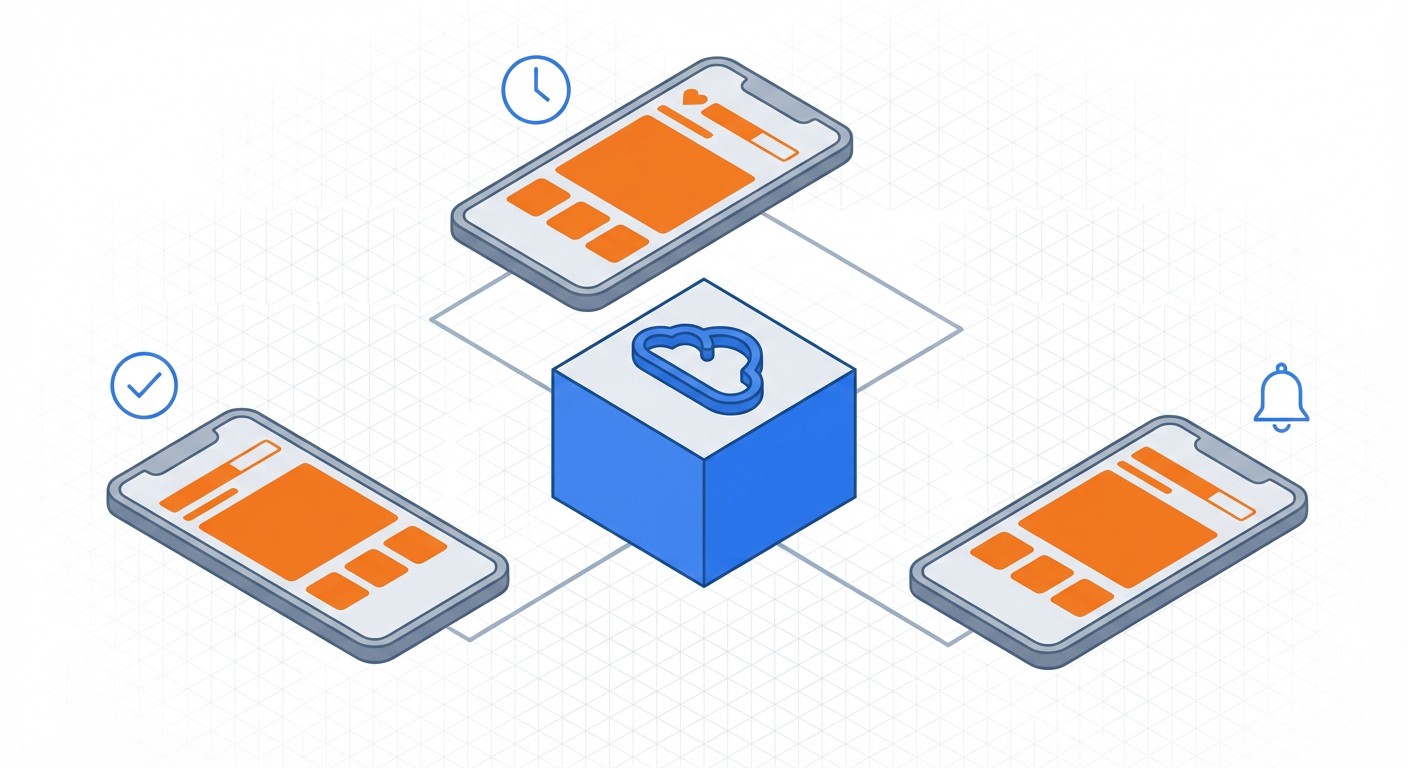
This is where FoxPhone comes in. Instead of physical hardware, FoxPhone provides cloud-based Android instances running on remote servers. Your Free Fire account runs on FoxPhone's ARM-based cloud phones 24/7 while your personal phone stays off. Zero battery wear, no heat, and you access it anywhere via FoxPhone's app.
How FoxPhone Solves Free Fire Mission Automation
FoxPhone runs actual ARM Android systems—the same architecture as physical phones—so Free Fire can't distinguish it from a regular Samsung or Xiaomi device. Each FoxPhone instance has separate device IDs, IMEI numbers, and hardware fingerprints, meaning multiple accounts run safely without cross-contamination.
The 24/7 uptime is the critical advantage. Set up Free Fire on a FoxPhone instance at 9 PM, complete missions, then leave it running. When Clock-In events trigger at 1 AM, 5 AM, and 9 AM, your FoxPhone instance is already online—you just remote in for 30 seconds to claim rewards. No need to set phone alarms or interrupt sleep.
FoxPhone's cloud storage eliminates the "storage full" issue that plagues Free Fire players. The game requires 2-2.5GB installed, plus 500MB-1GB for updates and cached assets. Budget phones with 32GB storage constantly hit limits. FoxPhone instances start at 64GB, expandable further, so updates never fail mid-download.
Network stability is another FoxPhone advantage. Free Fire missions in ranked modes (required for daily mission completion) need stable connections. A dropped match counts as a loss and doesn't credit mission progress. FoxPhone's server-grade internet connections have 99.5%+ uptime—no spotty home WiFi killing your mission streaks.
Setting Up Free Fire on FoxPhone: Step-by-Step
Step 1: Create Your FoxPhone Instance
Log into FoxPhone's dashboard and create a new cloud phone instance. Select an Android 9 or Android 11 instance (Free Fire runs best on these versions). Choose a server location close to your actual location—Singapore or US West servers minimize latency. FoxPhone provisions the instance in 2-3 minutes.
Step 2: Install Free Fire via Google Play
Open Google Play Store on your FoxPhone instance (accessed through FoxPhone's web interface or mobile app). Sign in with a Google account, search "Garena Free Fire," and install. The 2.3GB download takes 5-8 minutes on FoxPhone's gigabit connections. Never sideload APKs—Google Play installations have better anti-cheat trust.
Step 3: Configure Free Fire Settings
Launch Free Fire on FoxPhone and log into your account (Facebook, Google, or VK linking works normally). Immediately adjust graphics: Set to "Smooth" graphics and 30fps in Settings > Graphics. This reduces CPU load on the FoxPhone instance, allowing smoother remote control. Disable "Auto Download Resources" to prevent background downloads interrupting missions.
Step 4: Set Up Mission Automation Strategy
Free Fire doesn't have true auto-play for missions, but FoxPhone enables "check-in and execute" workflows. Bookmark critical missions: Play 3 BR Ranked matches (30 mins), complete 5 Training Grounds (15 mins), and collect pet rewards (2 mins). Schedule 1-hour blocks on FoxPhone where you remote in, start matches, and let them run while you multitask on your real phone.
Step 5: Configure FoxPhone Notifications
Enable FoxPhone's notification forwarding in Settings. When Free Fire sends alerts (rank protection expiring, pet hunger, Clock-In available), they forward to your personal phone. You'll know exactly when to remote into FoxPhone for 30-second check-ins without constantly opening the app.
Step 6: Clone FoxPhone Instances for Multiple Accounts
If managing multiple Free Fire accounts, FoxPhone's cloning feature duplicates your configured instance in seconds. Each clone gets separate device IDs, so Free Fire treats them as different phones. Run 3-5 accounts simultaneously, each completing missions independently. Access all instances from one FoxPhone dashboard.
Real-World Cost Comparison: FoxPhone vs. Physical Phones
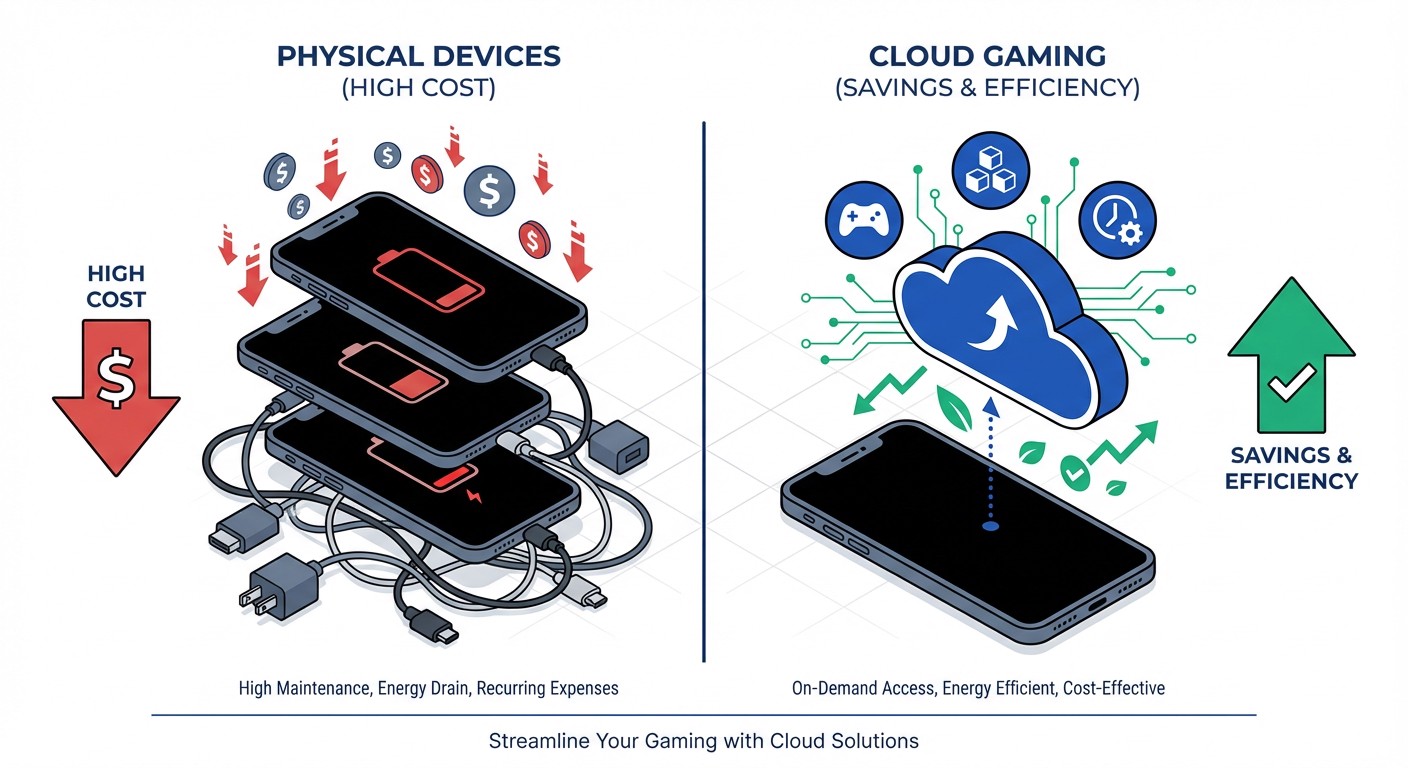
Let's calculate the true cost for a player managing 3 Free Fire accounts with moderate play (2 hours daily per account for missions):
Physical Phones Method:
- 3x budget Android phones ($70 each): $210
- Battery replacements after 12 months (3x $60): $180
- Electricity (3 phones charging, 8hrs/day, $0.12/kWh): $15.80/year
- Total Year 1: $405.80
- Total Year 2 (replacement + electricity): $226
FoxPhone Method:
- FoxPhone subscription (3 instances, ~$15-25/month): $180-300/year
- Electricity: $0 (cloud-based)
- Hardware replacement: $0
- Battery wear on personal phone: $0
- Total Year 1: $180-300
- Total Year 2: $180-300
FoxPhone saves $105-225 in the first year alone, and the gap widens as physical phones degrade. By year 3, physical phones need full replacement, while FoxPhone instances cost the same monthly rate with zero hardware concerns.
Time savings matter too. Without FoxPhone, you're physically managing 3 devices—finding them when missions reset, plugging in chargers, updating each separately. FoxPhone consolidates everything into one dashboard accessible from your main phone or laptop. Players report saving 15-20 minutes daily just on account switching and device management.
Three Free Fire Strategies That Work Best with FoxPhone
Method 1: The Daily Mission Farmer
Use FoxPhone to run missions on autopilot mornings/nights. Remote in at 7 AM before work, start 3 ranked matches on FoxPhone, and let them run while you commute. Check back during lunch to collect rewards and start Training Grounds missions. Your personal phone stays free for calls, messaging, and other apps.
Ideal for: Casual players who want diamonds without phone babysitting. Expect 2,500-3,000 diamonds monthly per account with 1.5 hours total engagement daily.
Method 2: The Elite Pass Grinder
Elite Pass missions require 50+ matches weekly across BR, Clash Squad, and special modes. FoxPhone instances handle the grind while you focus on skill-based gameplay on your main phone. Use FoxPhone for repetitive tasks (playing X matches, collecting dailies), then switch to your personal device for ranked pushing where performance matters.
Ideal for: Competitive players who want Elite Pass rewards but hate mission grinding. Saves 5-7 hours weekly.
Method 3: The Alt Account Manager
Run 3-5 alt accounts on FoxPhone instances for gifting events, guild contributions, or reselling. Log into each FoxPhone instance once daily (10 mins per account), complete basic missions, accumulate diamonds, then trade items to your main. Some players sell diamond-loaded alts for $15-30 after 3 months of FoxPhone farming.
Ideal for: Entrepreneurial players treating Free Fire as side income. FoxPhone's $60-100 quarterly cost offsets against $100-200 account sale revenue.
What FoxPhone Can't Fix in Free Fire
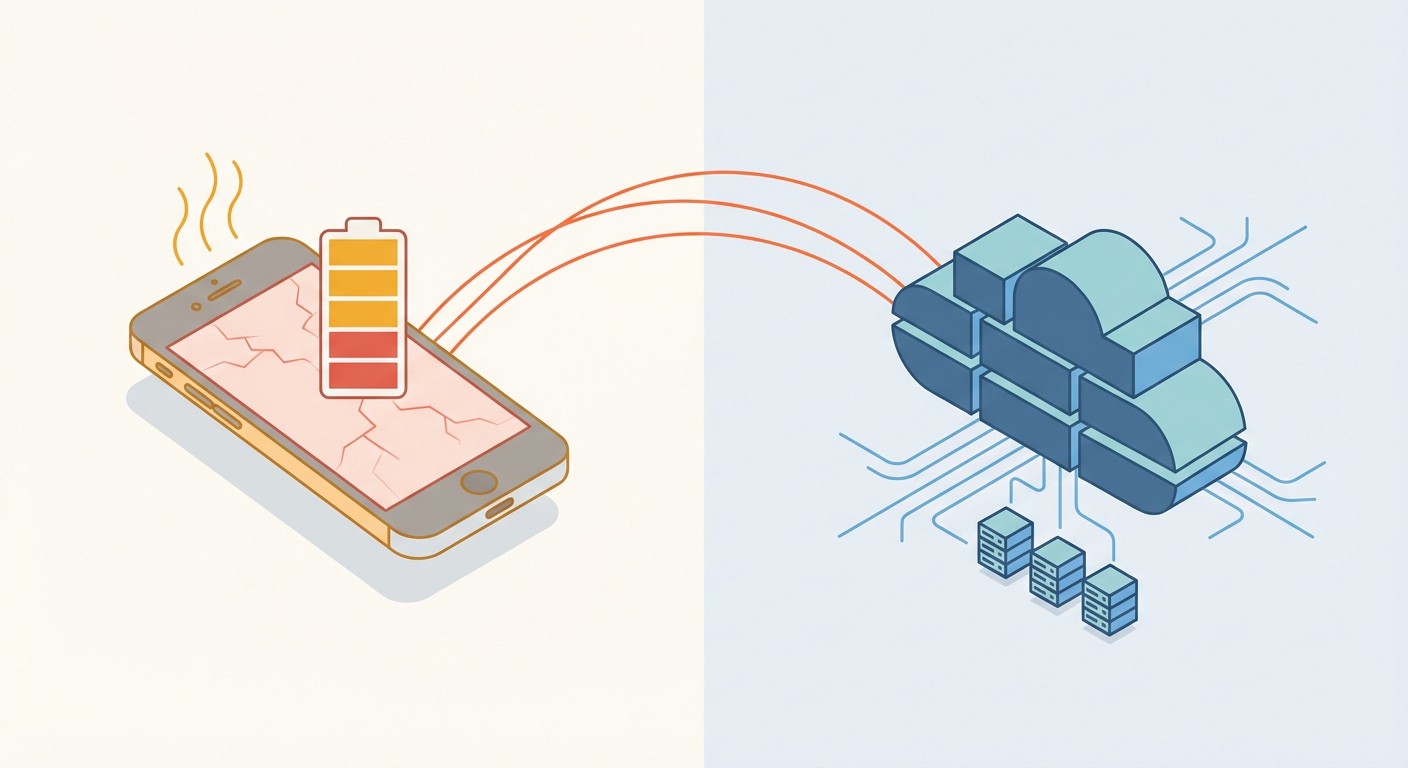
Latency in competitive modes: FoxPhone adds 20-50ms ping compared to playing on local WiFi. In ranked Clash Squad or late-game BR fights, this affects reaction times. Serious ranked players should use FoxPhone for missions and switch to personal phones for competitive matches.
Graphics quality: FoxPhone instances run smooth (low) to medium graphics reliably. If you're content creator who needs ultra graphics for YouTube clips, you'll still need a flagship phone for recording. FoxPhone is mission/grinding focused, not content capture.
Account security: While FoxPhone uses secure connections, you're still logging into Free Fire from a cloud instance. Enable two-factor authentication on linked Facebook/Google accounts, and never share FoxPhone login credentials. FoxPhone itself can't prevent account theft if your linked accounts are compromised elsewhere.
Update delays: When Free Fire pushes major updates (every 2-3 months), FoxPhone instances download them like regular phones. The 1-2GB update takes 10-15 minutes on FoxPhone's connection, but you can't play during download. Schedule FoxPhone updates during off-hours to avoid mission downtime.
FAQ
Is FoxPhone safe for Free Fire accounts? Will I get banned?
FoxPhone runs native ARM Android—the same OS as physical phones—so Free Fire's anti-cheat can't distinguish it from a Samsung or Xiaomi device. Each FoxPhone instance has unique device IDs, making it functionally identical to playing on separate phones. Thousands of players use FoxPhone for Free Fire daily without issues. The key is avoiding prohibited third-party mods or scripts; FoxPhone itself is just a cloud-based phone.
How much does FoxPhone cost for Free Fire farming?
FoxPhone pricing varies by instance count and subscription length. A single instance runs approximately $8-12/month, with discounts for 3-month or annual subscriptions. For 3 Free Fire accounts, expect $18-30/month. Compare that to buying 3 budget phones ($210) plus electricity and battery replacements—FoxPhone breaks even within 4-6 months and saves money thereafter.
Can I play Free Fire on FoxPhone from my iPhone?
Absolutely. FoxPhone's app works on iOS, Android, Windows, and Mac. Your Free Fire account runs on FoxPhone's cloud Android instance, and you control it via remote access from your iPhone. It's like screen-mirroring, but the game actually runs on FoxPhone's servers. This means iPhone users can play Android-exclusive Free Fire events or manage alt accounts without owning an Android phone.
Stop Killing Your Phone Battery—Let FoxPhone Handle Free Fire Missions
Free Fire's mission system demands constant availability that physical phones can't sustain without serious wear. Batteries degrade, electricity costs accumulate, and managing multiple accounts becomes a juggling act. FoxPhone shifts the burden to cloud servers designed for 24/7 operation, letting you collect diamonds, complete missions, and manage alts without sacrificing your personal phone's health.
The economics favor FoxPhone after 4-6 months, and the convenience is immediate. Instead of three phones cluttering your desk, you've got one dashboard controlling three accounts. Instead of overnight charging cycles destroying battery capacity, your phone charges normally for actual personal use. Instead of missing Clock-In events during work or sleep, FoxPhone keeps running, ready for 30-second remote check-ins.
Try FoxPhone free for 3 days and test it with your Free Fire account. Complete one full mission cycle on FoxPhone—you'll immediately notice your personal phone staying cooler, lasting longer, and staying available for actual calls and apps instead of being locked in a game for hours. For Free Fire players serious about maximizing diamonds without maximizing phone damage, FoxPhone isn't optional—it's essential.
 How to Complete Free Fire Missions 24/7 with FoxPhone: 3 Methods That Actually Work
How to Complete Free Fire Missions 24/7 with FoxPhone: 3 Methods That Actually Work
 How to Run Township Production Chains 24/7 with FoxPhone: Complete Automation Guide
How to Run Township Production Chains 24/7 with FoxPhone: Complete Automation Guide
 What is Cloud Phone?
Insightful article


© 2026 Foxphone LLC. All rights reserved.


 Cookie Notice